


Import configuration from desktop
Reuse supported model providers already configured in Cherry Studio on your computer, without entering every address and key again.
This guide covers provider configuration and enabled-model import, not chat-history transfer. Pairing can also provide desktop-agent access, with a separate permission. Configuration is not continuously synchronized; explicitly import later changes.
Connect your computer
- Keep desktop running. Prefer the same local network for first setup; an already configured reachable domain, port, or secure connection follows its actual address.
- Open Device connections on desktop and display its pairing QR code.
- On mobile, open Settings → Device connections → Scan QR code. Allow camera and local-network permissions when requested.
- Complete pairing and configuration-sync authorization on both devices. After pairing from Settings, start synchronization from device details; onboarding continues through import and model selection.
If the camera is unavailable, use the manual field to paste the pairing QR content from desktop. It expects pairing data, not an ordinary website link.
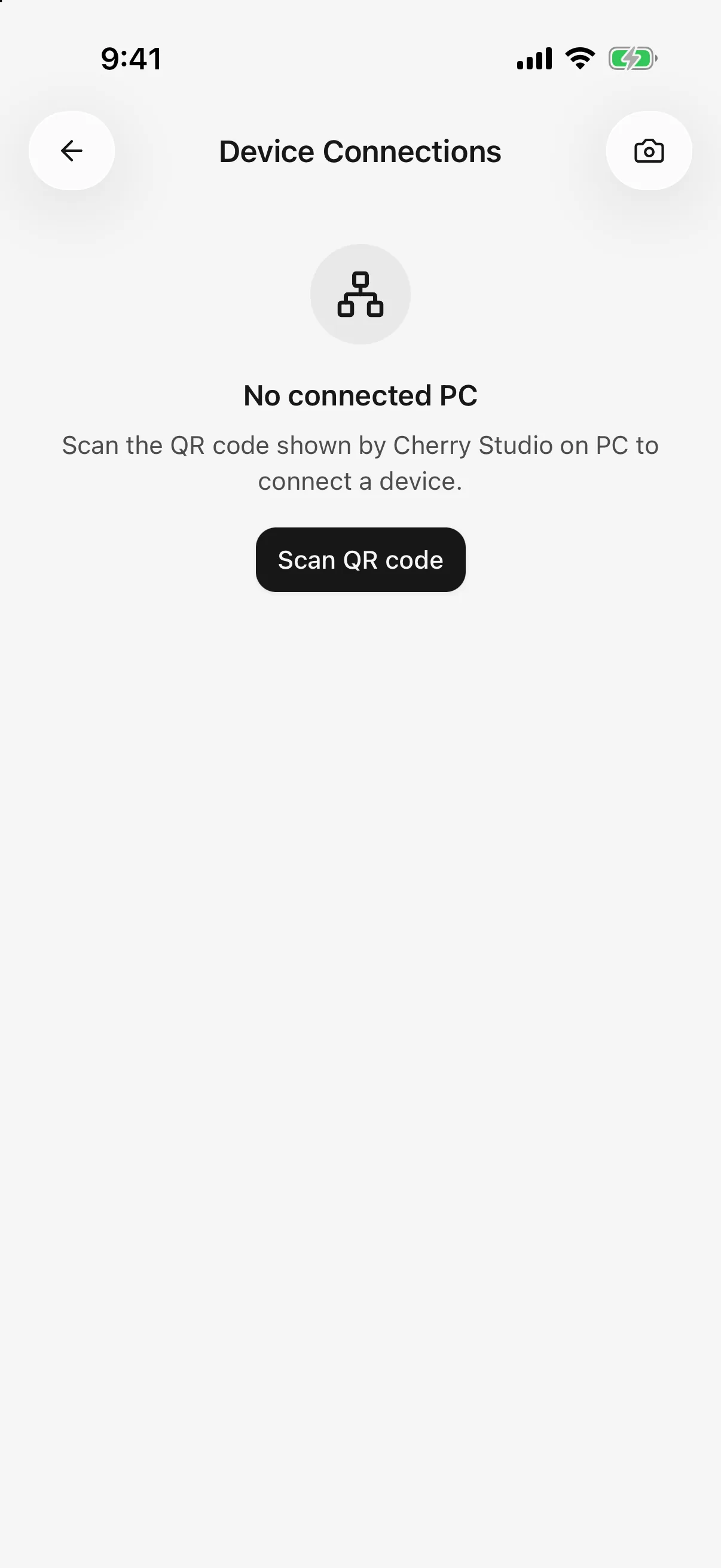
iPhone · Settings → Device Connections: scan the QR code shown on desktop
Local device names and connection addresses
Device details can assign a local alias without renaming the computer or changing its grants. Use supported domain, custom-port, or HTTPS connection settings and check reachability after editing.
The desktop connection address and imported model-provider addresses have different jobs. Pairing successfully does not establish access to every model endpoint from the phone.
Select and import providers
Use Sync providers from desktop in the paired device's details. Alternatively, choose Sync from desktop in the model service list's menu and select the computer.
- Wait for enabled desktop providers to load.
- Select the providers to import.
- Read the notice that selected addresses and keys will be replaced while existing models remain.
- Synchronize and review the added, updated, and skipped counts.
- Select an imported model in chat. During onboarding, continue to its chat-model selection step.
What happens to existing mobile settings?
| Item | Result |
|---|---|
| Selected provider | Receives the desktop configuration and keys, and becomes enabled on mobile |
| Enabled desktop model missing on mobile | Added |
| Same model already on mobile | Existing mobile settings retained; no duplicate |
| Mobile-only providers/models | Retained |
| Disabled desktop providers/models | Excluded from import |
| Chat history and plugin account grants | Not imported |
If you use different keys on desktop and mobile, take particular care with the first row. A provider can have its credentials replaced even when no new models need adding.
Why are some providers unavailable?
Read the reason shown beside the provider:
- Unsupported authentication: a desktop login may not provide an exportable key usable on mobile. Configure a supported method separately on mobile.
- No usable API key: key-based providers need a valid enabled key on desktop. Explicitly keyless HTTP gateways follow the import preview's requirements.
- Unreadable configuration: update mobile, or skip that entry and import the others.
The current version can import supported HTTP-service configurations, including gateways such as LM Studio and keyless connections. Invocation still depends on the exported API: native Ollama endpoints remain unsupported; compatible endpoints depend on their actual configuration.
The model runs on the computer or service host. Its address must be reachable from the phone. On mobile, localhost and 127.0.0.1 refer to the phone itself; replace them with a reachable service address. Import does not automatically forward requests through the computer.
Paired successfully, but cannot synchronize
Pairing stores connection credentials; fetching configuration still needs a reachable computer. Keep desktop running and check the selected address, guest-network isolation, firewall, and proxy. Sharing Wi-Fi does not itself establish authorization or reachability.
On iPhone/iPad, enable Cherry Studio's local-network permission in system settings if previously denied. If the app says pairing needs repair, scan a new desktop QR code.
Does removing a device revoke both sides?
Remove device on mobile removes only that phone's saved connection credentials. To revoke desktop authorization too, remove the mobile device in desktop's Device connections.
Configuration import is not a full backup. Use Backup and restore before changing devices, or export selected work.