


Providers and models
A provider supplies an AI service; a model is the particular AI you use through it. The same model can be offered by several platforms, each with its own credentials.
Start with an API key, or an account sign-in method actually offered on the configuration page. Your own services require their own usable credits. Existing entitled community accounts use managed CherryAI models, while organization catalogs follow their service. These differ from ordinary provider-key sign-in; see accounts and organizations.
Add a built-in provider
- Open Settings → Model service and tap add.
- Search for a provider and tap Add.
- Enter its key or sign in through the account section. Built-in addresses and API formats usually need no changes.
- Continue to model setup: fetch and select models, or manually enter the platform's exact model ID.
- Return to the provider list, confirm it is enabled, and select a model in chat.
Recommendations adapt to the detected network region, falling back to device region when needed, without replacing existing configurations. Open an already added provider to edit it instead of creating a duplicate. New providers require completing the page's continue/create action; existing providers save as described below.
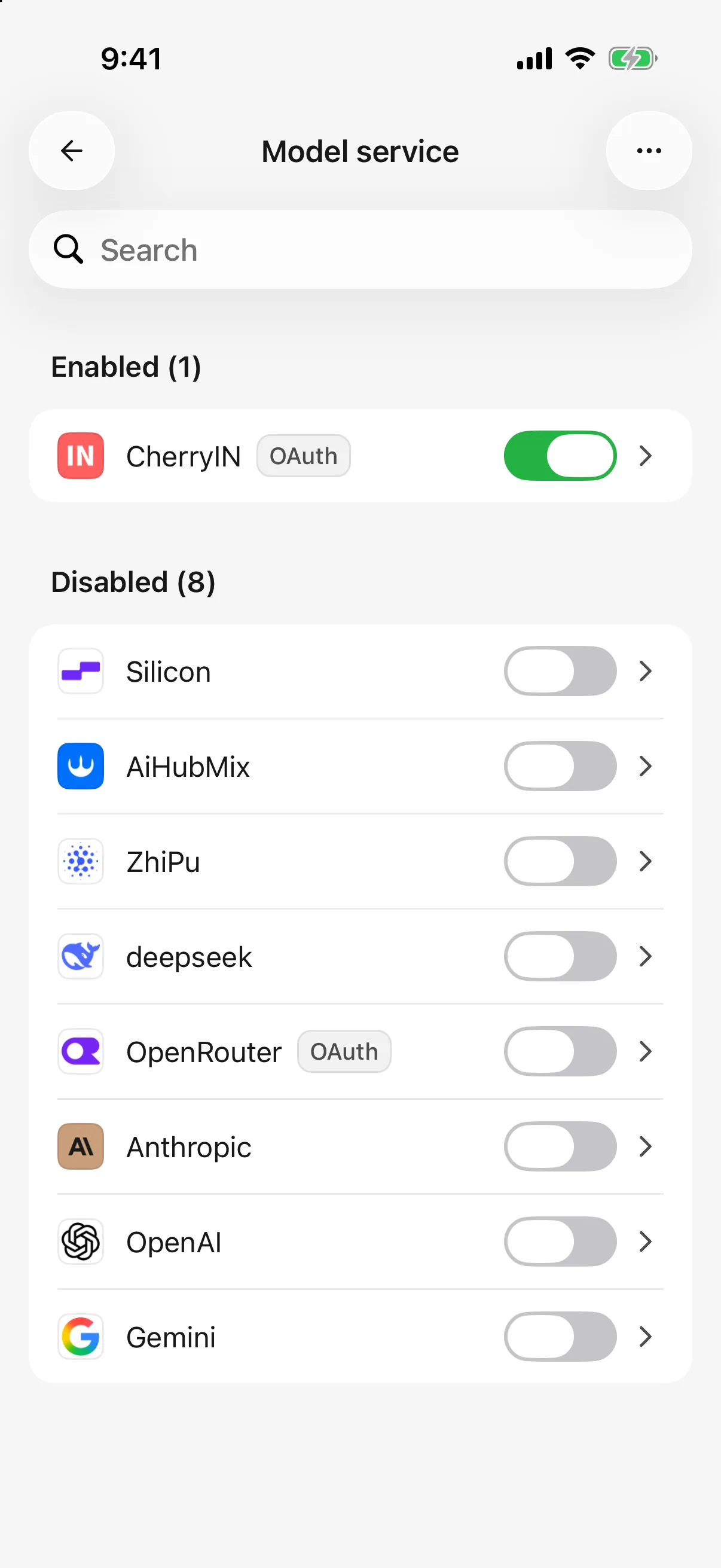
iPhone · Model services: enabled providers are listed first
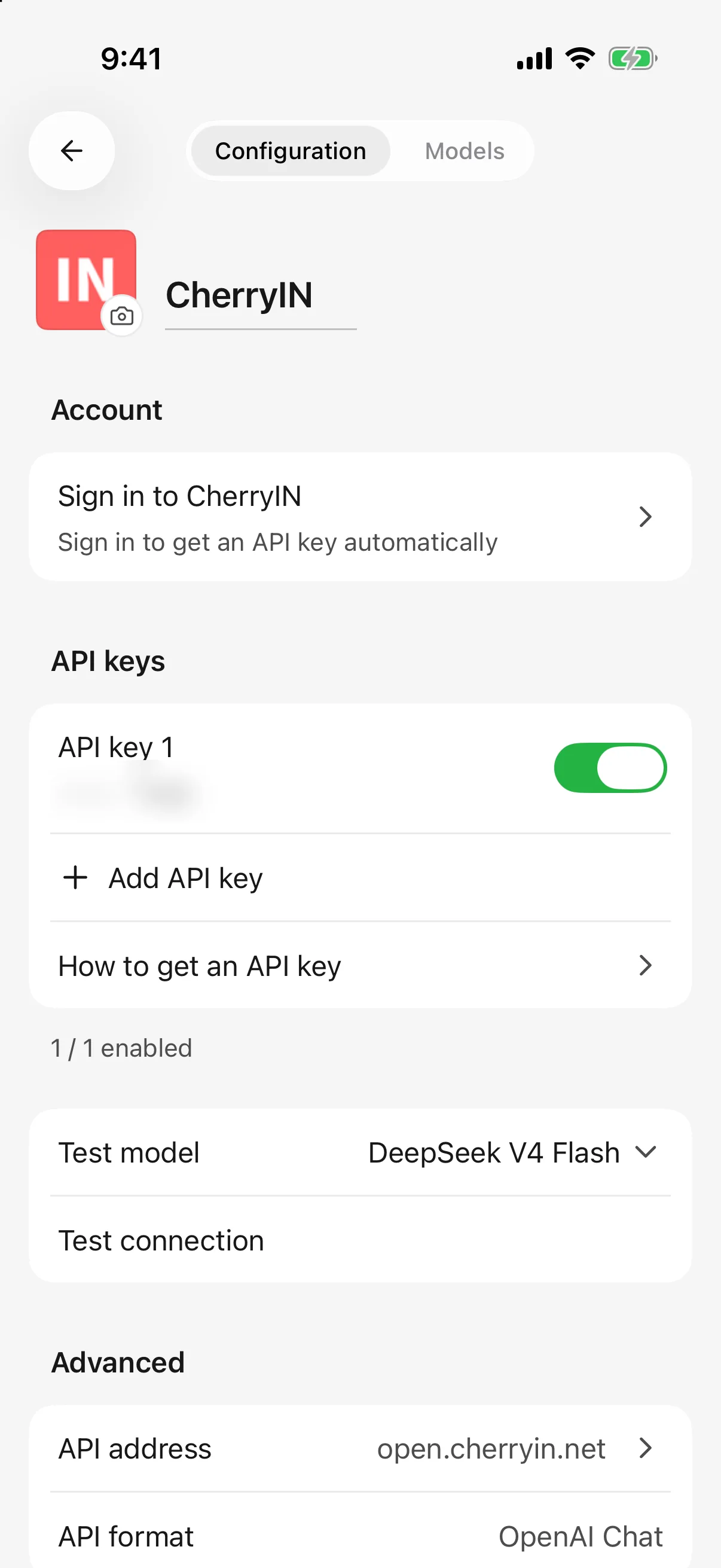
iPhone · Provider settings: sign-in, keys, connection test, and API address (key blurred)
Add a custom provider
- Choose Custom provider and enter a name.
- Select the API format documented by the platform. OpenAI, Anthropic, and Gemini describe connection formats, not interchangeable model names.
- Enter its Base URL and required credentials.
- Check the address and API, continue creation, and fetch or manually add models.
- Confirm the provider is enabled and check a model's connection.
Which address goes in Base URL?
Use the provider's base address, such as https://api.example.com/v1, not a login/dashboard page. Do not duplicate complete request paths such as /chat/completions in the base address.
Some platforms require no automatically appended API version. If instructed, add #, for example https://api.example.com#; otherwise omit it. Providers supporting multiple APIs can have separate addresses and a default API. Changing the default may affect models that follow it, so read the confirmation.
A phone must be able to reach an HTTP service running on your computer. On the phone, localhost and 127.0.0.1 refer to the phone itself. Importing configuration does not make those addresses reachable. Keyless gateways work only where configuration explicitly supports them; do not invent a dummy key to bypass setup. See desktop import.
Edit a provider and manage keys
Existing providers save configuration directly; there is no page-wide Save button. Names, addresses, and key switches save through their respective actions. Resolve reported errors before leaving.
- Add one key per entry. Enable, disable, or remove keys separately; do not paste several into one field.
- A key-editing sheet still has its own Save action for the key and label. This differs from the provider page's automatic saving.
- Labels identify a key's purpose; they do not change permissions or credits.
- Key-based authentication needs a valid enabled key. Account authentication and explicitly keyless connections follow their own requirements.
Some chat requests can try another enabled key after authentication or rate-limit errors. This does not increase account credits or guarantee recovery for every request.
App accounts versus provider accounts
Manage community/organization sign-in in the profile area, and a provider's OAuth sign-in on that provider's configuration. Completing one does not complete the other. Managed CherryAI/organization services may be read-only; renaming them or editing capability flags cannot grant access.
Vertex AI uses Google Cloud service-account credentials and project permissions for supported Gemini or Claude models. Follow its configuration/platform requirements rather than substituting consumer Google sign-in, a Gemini API key, or another subscription.
Sign in with an account
If configuration offers sign-in, follow its authorization page and return to Cherry Studio to confirm. Not every catalog provider supports account login, and a consumer chat subscription is not necessarily usable as API credits.
The account section can show the identity, balance, or refresh actions supplied by the platform. Signing out and revoking a model key are not always the same operation; inspect the key list when disabling credentials. Changing devices or restoring a backup may require signing in again.
Check the connection
Select a text model in provider configuration and run the connection check. Finish any key-editing sheet and resolve saving errors first.
Success applies to this configuration and model, not every model. A check does not enable the provider. Model discovery and chat use different APIs; if discovery fails, manually add a model and check it.
Choose models and defaults
A single choice in the conversation model picker changes the current agent's model. Selecting several text models requests parallel answers without replacing its default; see multiple models and branches. Search or use filters such as All, Free, and Vision. If a model is missing, clear filters and check provider/model enablement.
Vision and Free reflect catalog information. Actual capabilities and credits depend on the platform; editing a capability flag cannot give a model a capability it lacks.
Settings → Default model offers text, drawing, translation, and naming-related model settings, including automatic naming. Existing agents keep their own selections. For translation fallback rules, see Reply and skill-document translation.
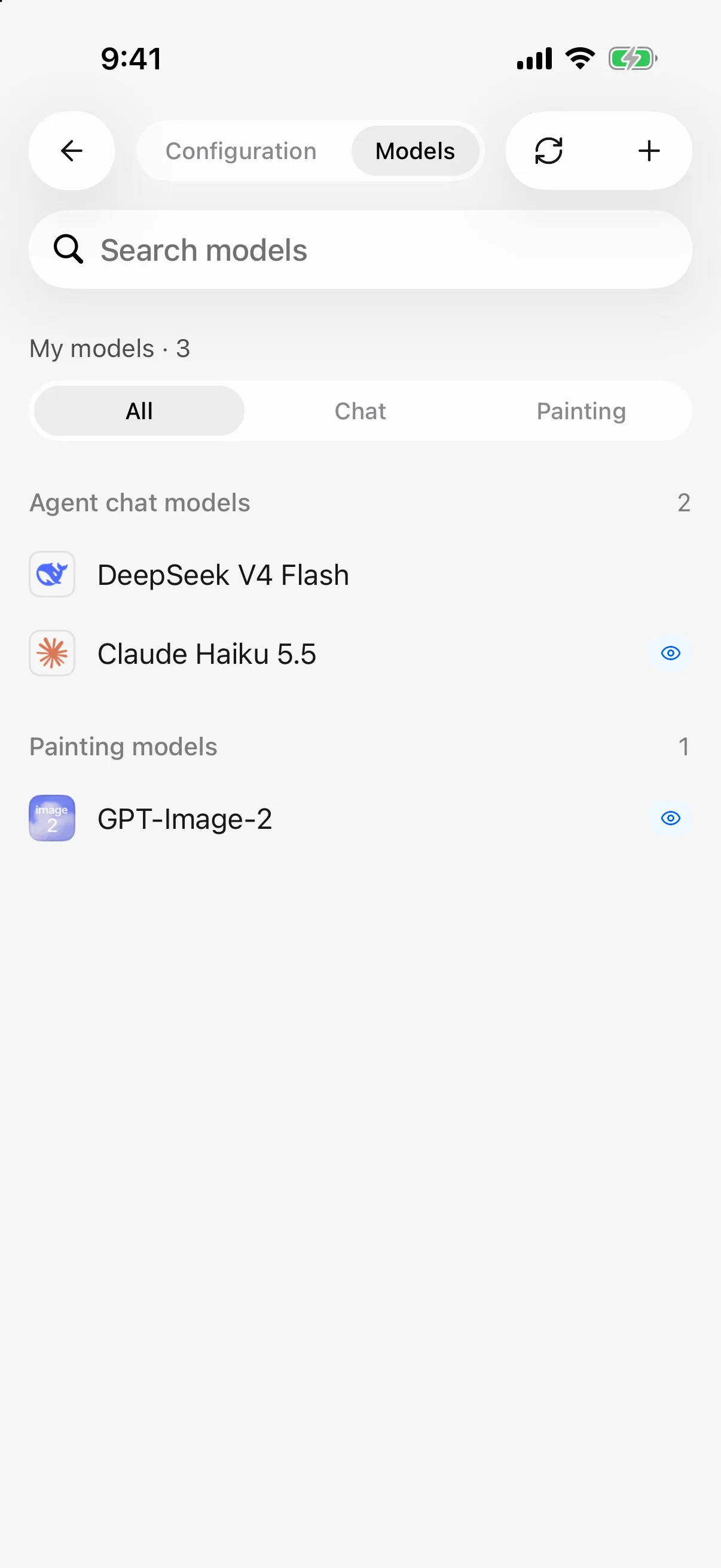
iPhone · Provider models: sync or add manually; vision models are labeled
Key order and individual checks
Key-based providers can configure rotation order and check a particular key independently. Success for that key does not establish that all other keys work. Do not treat rotation as extra quota or guaranteed recovery for every request.
Related guides
- Add, edit, and manage models: capabilities, limits, prices, and deletion.
- Model information and list updates: catalog updates versus manual synchronization.
- Import configuration from desktop: reuse providers.
- Troubleshooting: connection errors and recovery.