


Model Roles and Agent Image Generation
Cherry Studio picks models in three places: the global Default Model settings, the model roles of each Agent, and the Painting Model used when an Agent generates images. Knowing which setting controls which task saves you from changing the wrong one.
Where Each Model Is Set
| Setting | Where | What it controls |
|---|---|---|
| Default Assistant Model | Settings → Default Model | Assistants that have no model of their own |
| Quick Model | Settings → Default Model | Light background tasks, such as naming conversations and extracting search keywords |
| Translate Model | Settings → Default Model | The Translation page and message translation |
| Painting Model | Settings → Default Model | Image generation, including the Agent's Generate Image tool |
| Primary model | Edit Agent → Basic | The Agent's main reasoning and execution |
| Plan model | Edit Agent → Basic | Breaking a task into steps (Claude Agent runtime only) |
| Small model | Edit Agent → Basic | Quick judgments and formatting (Claude Agent runtime only) |
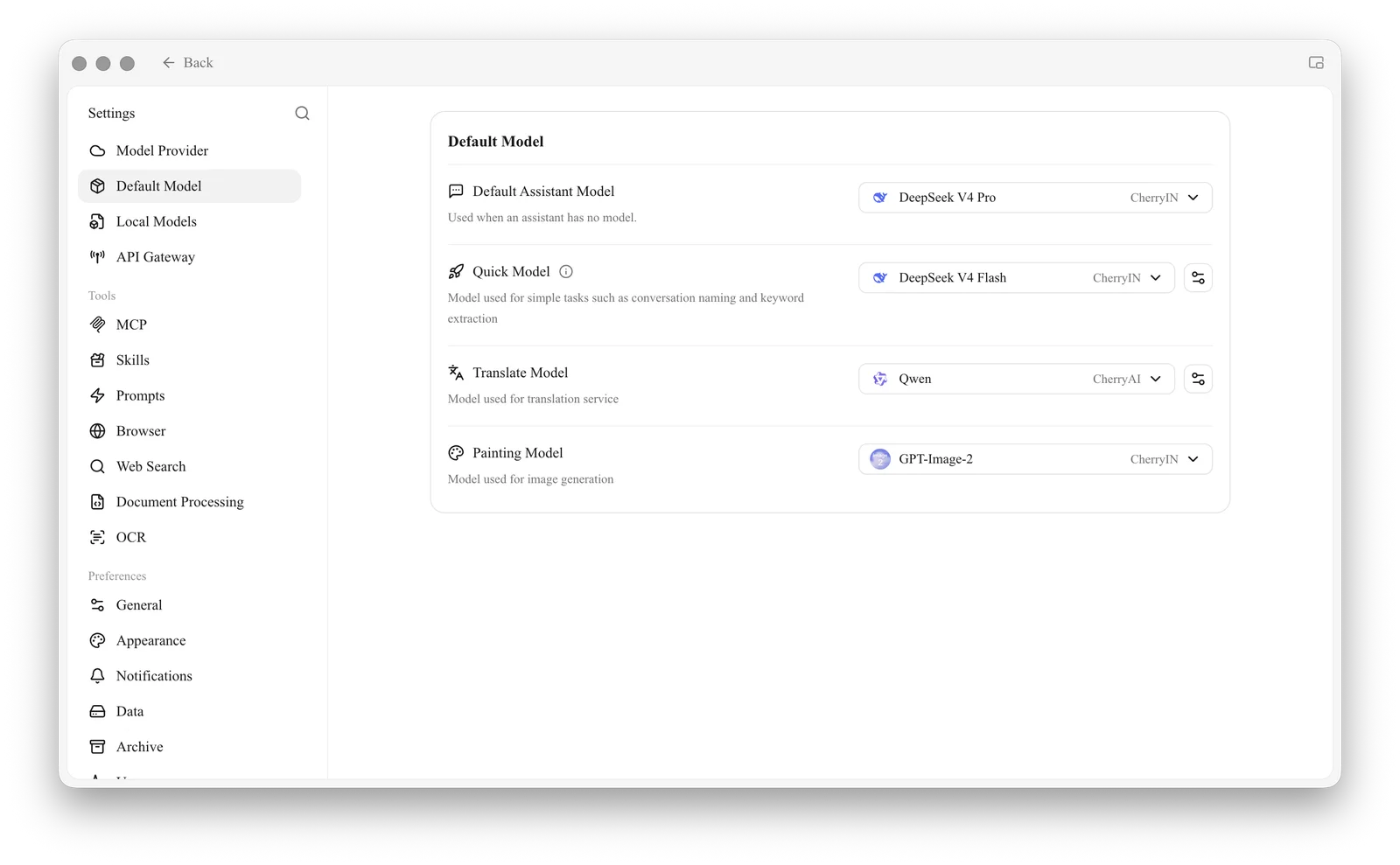
Settings → Default Model → Painting Model sets the model used for image generation
See Default Model Settings for how to choose each global default.
Agent Model Roles
Open Work, select an Agent, and choose Edit → Basic:
- Primary model: does most of the work. Choose a model that calls tools reliably.
- Plan model and Small model: start with the same model as the primary. Change them only when you want planning or lightweight steps handled by a different (often cheaper) model.
The Pi runtime uses the primary model only, so it does not show the Plan and Small fields. The runtime mode is chosen when the Agent is created and cannot be changed later; see Creating Agents and Model Roles.
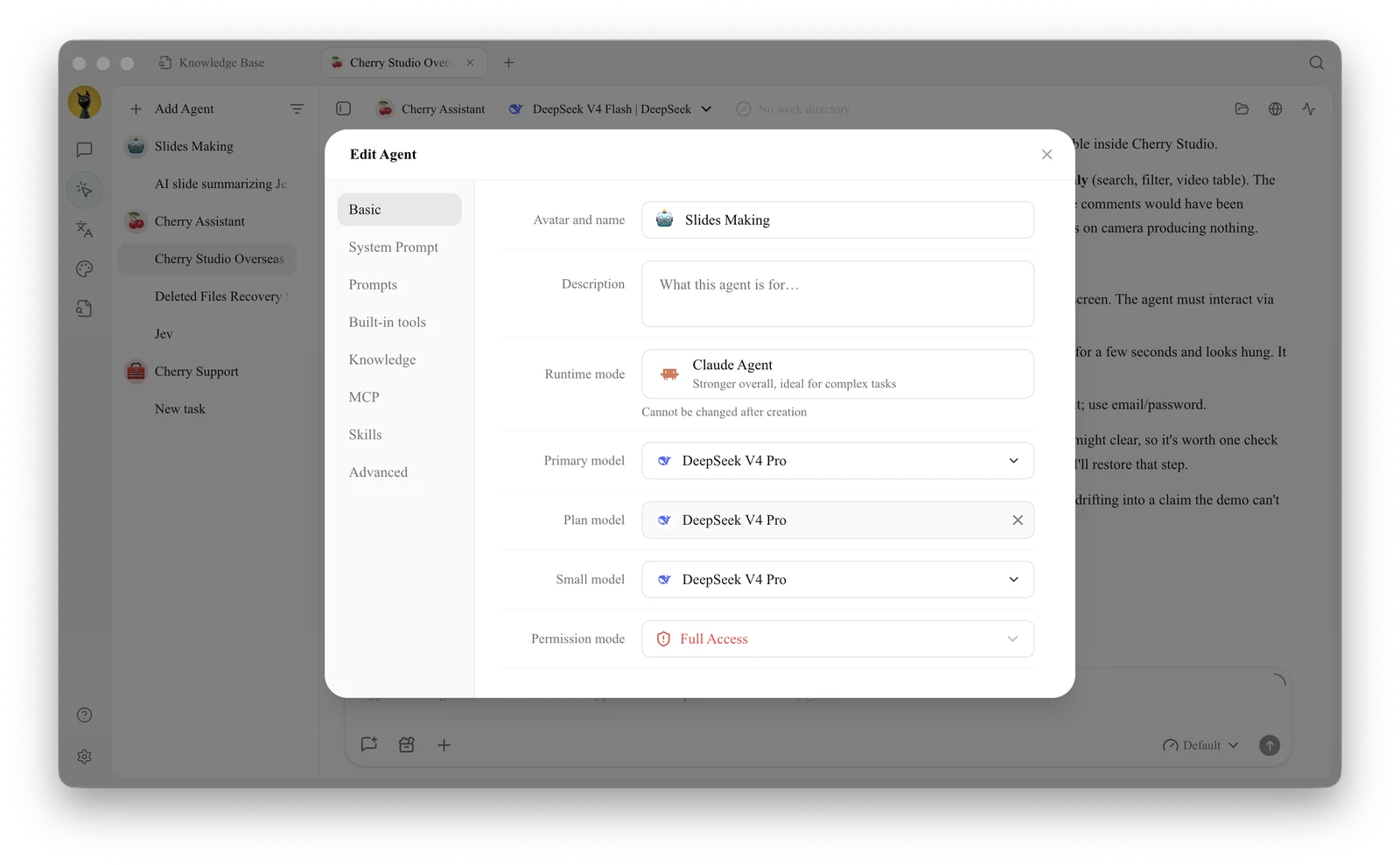
Model roles are set per Agent in Edit Agent → Basic
Generating Images in an Agent
1. Set the Painting Model
In Settings → Default Model, choose an image model you have already configured as the Painting Model, and make sure it works on the Paintings page first.
2. Turn on Generate Image
In Edit Agent → Built-in tools, check that Generate Image (in the Media group) is on.
3. Describe the Image
Ask the Agent for the image in the conversation, including subject, style, size, and where the file should be saved. Generate one sample first and confirm the direction before asking for a batch.
The Agent says it can't generate images. What should I check?
Make sure a Painting Model is set in Settings → Default Model and works on the Paintings page, and that Generate Image is turned on in the Agent's Built-in tools. Then send a new message so the Agent picks up the change.
Why don't I see the Plan model and Small model fields?
They are only available for Agents that use the Claude Agent runtime. Pi Agents use the primary model for everything.