


Work / Agents
Work (also called Agents) is the system in Cherry Studio that can call tools on its own, read and write files, and complete tasks across multiple steps — it's not the same thing as a chat assistant, which is just a role preset. You'll find it under Work in the left navigation bar (not the top tab used in older tutorials).
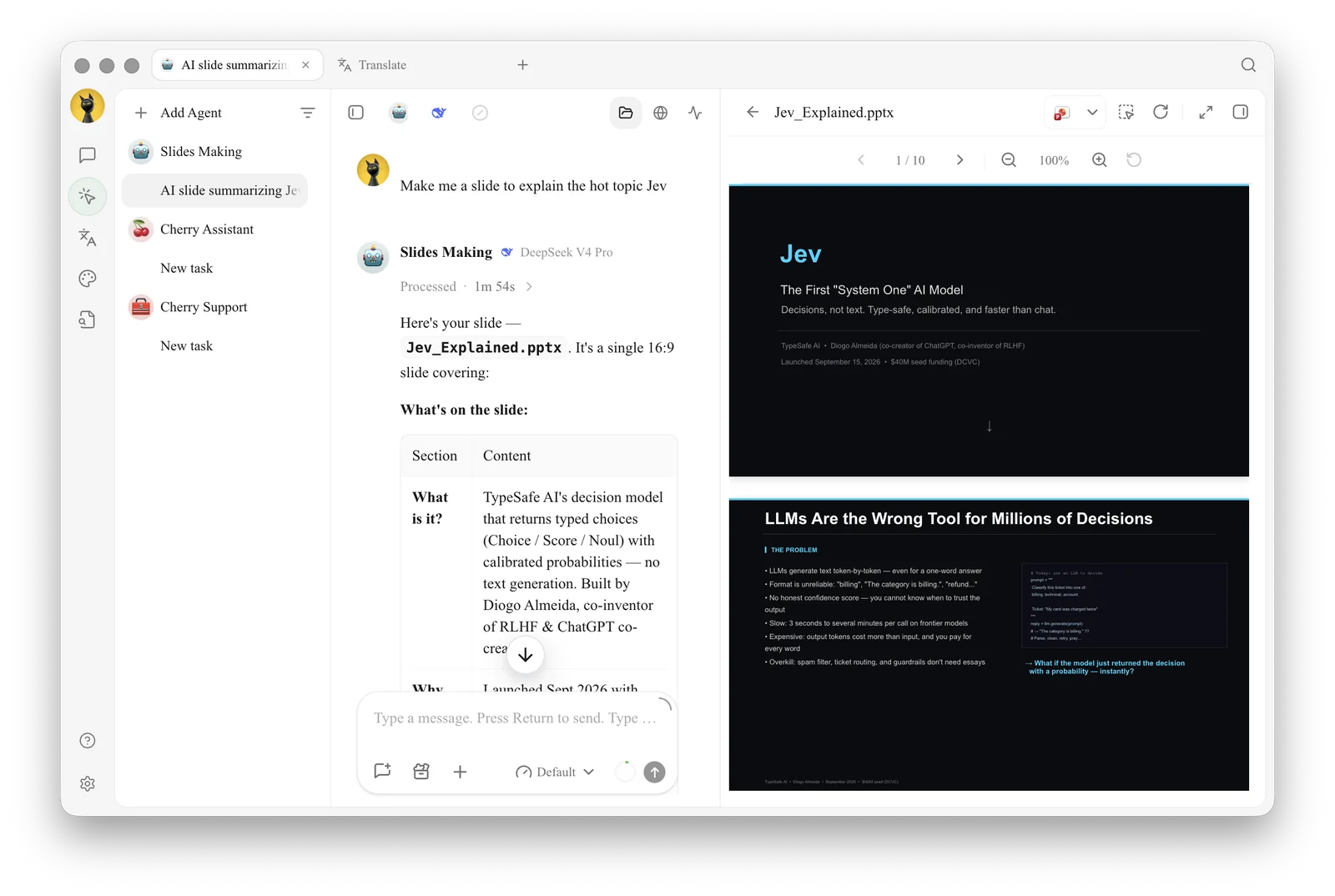
The Work page: choose the agent, model and working directory along the top and enter your task below; manage tasks and agents on the left
What It Can Do
- Read and write files: give it a working directory and it can read, edit and create files there.
- Call tools: built-in tools, plus the Skills and external MCP tools you attach.
- Multi-step reasoning / subtasks: break down a goal, dispatch sub-agents, and run background commands.
- Plug into automation: deploy it to IM platforms with Channels, or run it on a schedule with Scheduled Tasks.
Quick Start
- Open Work and choose an Agent. If you don't have one, click Add Agent and create one in four steps (Basic info / System Prompt / Skills / Knowledge). The built-in Cherry Assistant is ready to use.
- If the task involves local files, choose a working directory; otherwise the default workspace is fine.
- Describe the task in terms of "what should be delivered, which materials can be used, and what counts as done".
- Follow status / files / subtasks / message stream in the right panel; with developer mode on, you can also see the trace.
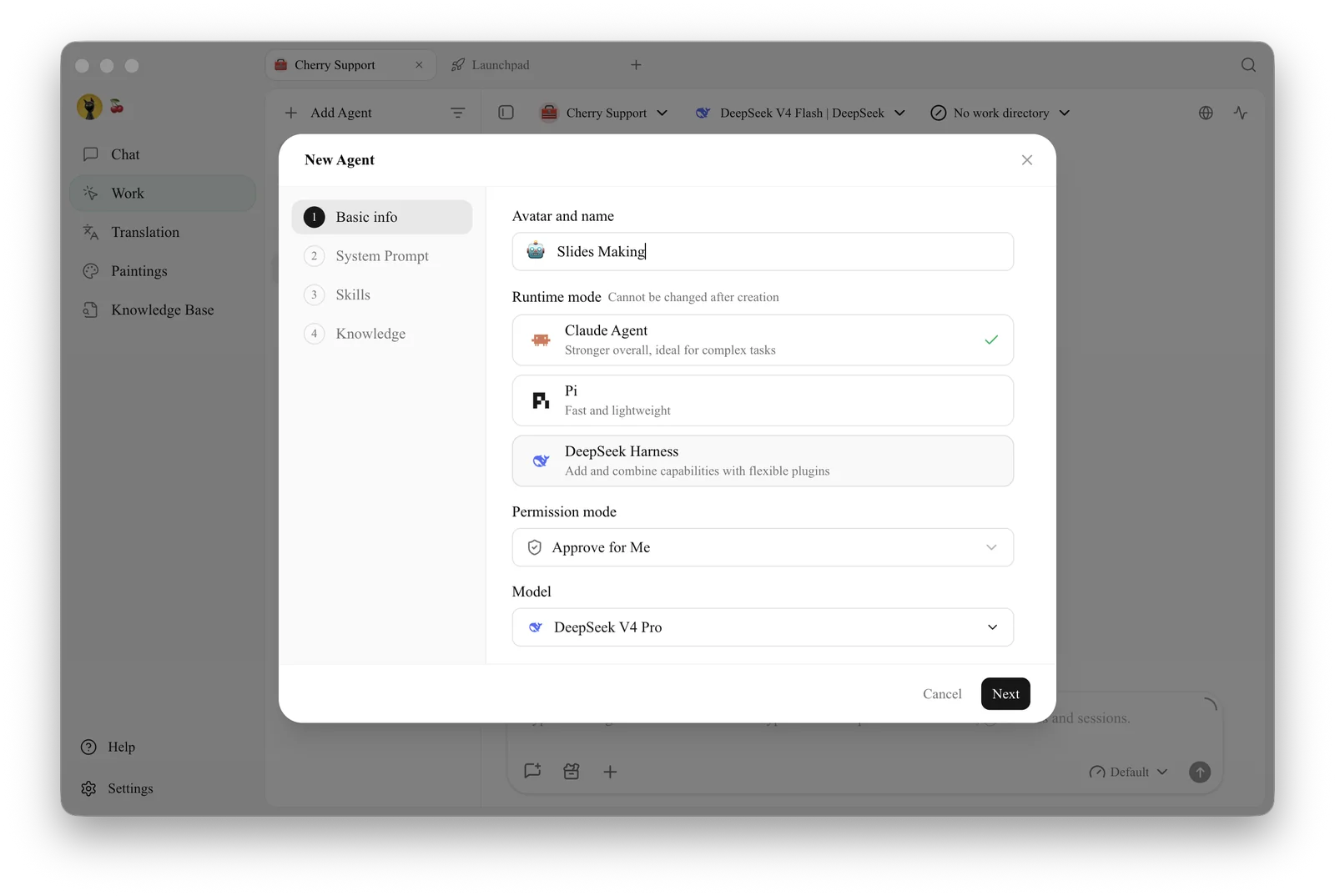
Creating an Agent: step 1 of 4 (Basic info)
Permission Modes
When an Agent works with files or commands, you can choose one of five permission modes, from most cautious to most hands-off: Ask Before Acting / Plan Only / Auto-accept Edits / Approve for Me / Full Access. Use the more hands-off modes only for unattended runs (such as Channels or Scheduled Tasks).
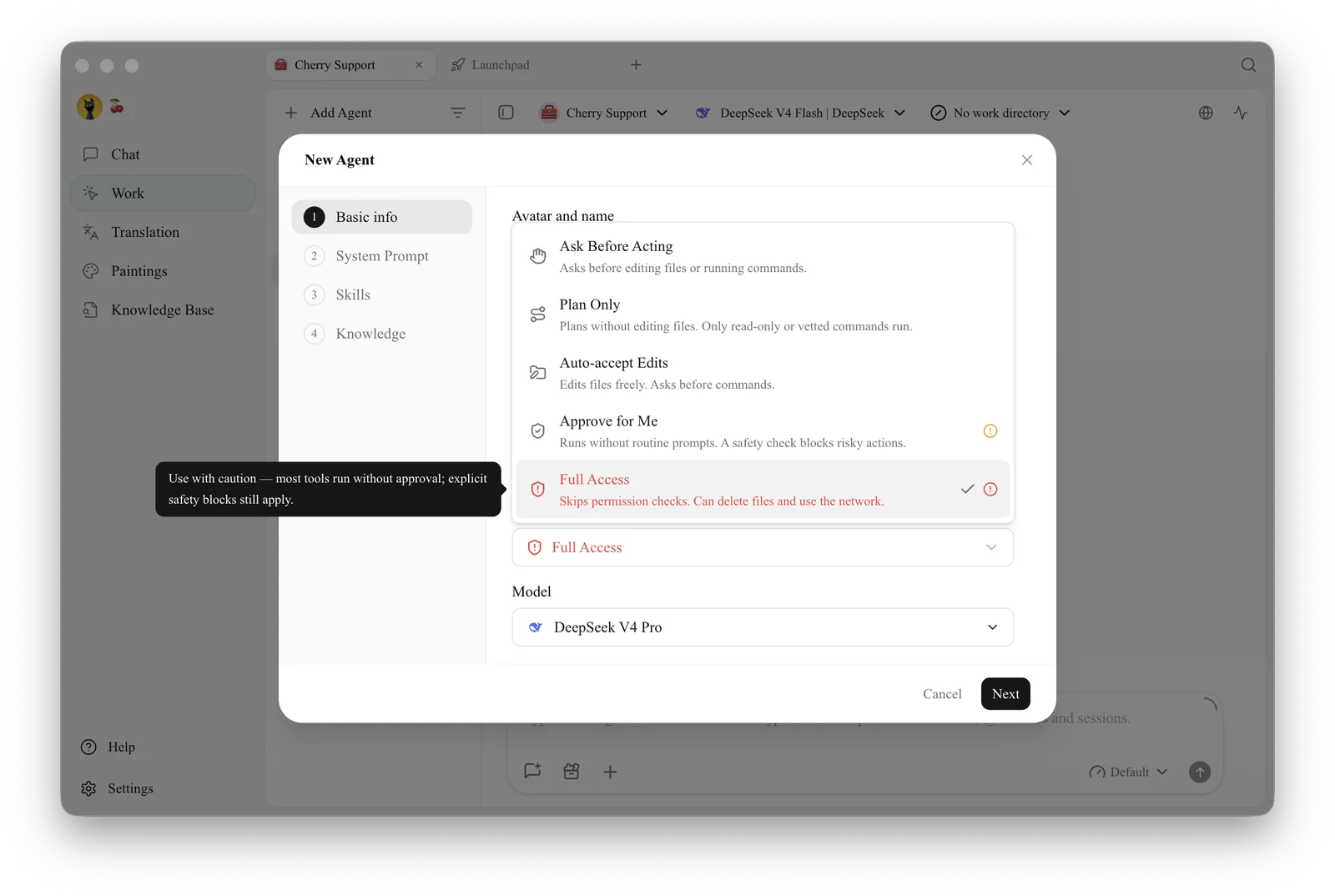
The five permission modes
Want to Go Deeper?
See the Advanced Tutorials for the full workflow:
- Agent Workspace — the complete way of working, from creation to delivery
- Creating Agents and Dividing Work Across Models
- Working Directories, Tasks and Files
- Built-in Tools, Knowledge Bases, Skills and MCP
- Permissions, Memory and Background Tasks
Get Help and Submit Feedback
If you have any questions, bugs, or feature suggestions during configuration or use, please use the official channels listed in Feedback and Suggestions.