


Painting
The Paintings page is Cherry Studio's built-in text-to-image tool: describe what you want in words and get an image back, much like web services such as Midjourney or DALL·E. Its main advantage is that it reuses the provider accounts you have already configured in Cherry Studio, so you don't need to sign up for each platform separately.
Open Paintings
Click + on the right side of the top tab bar to open the Launchpad, then click Paintings.
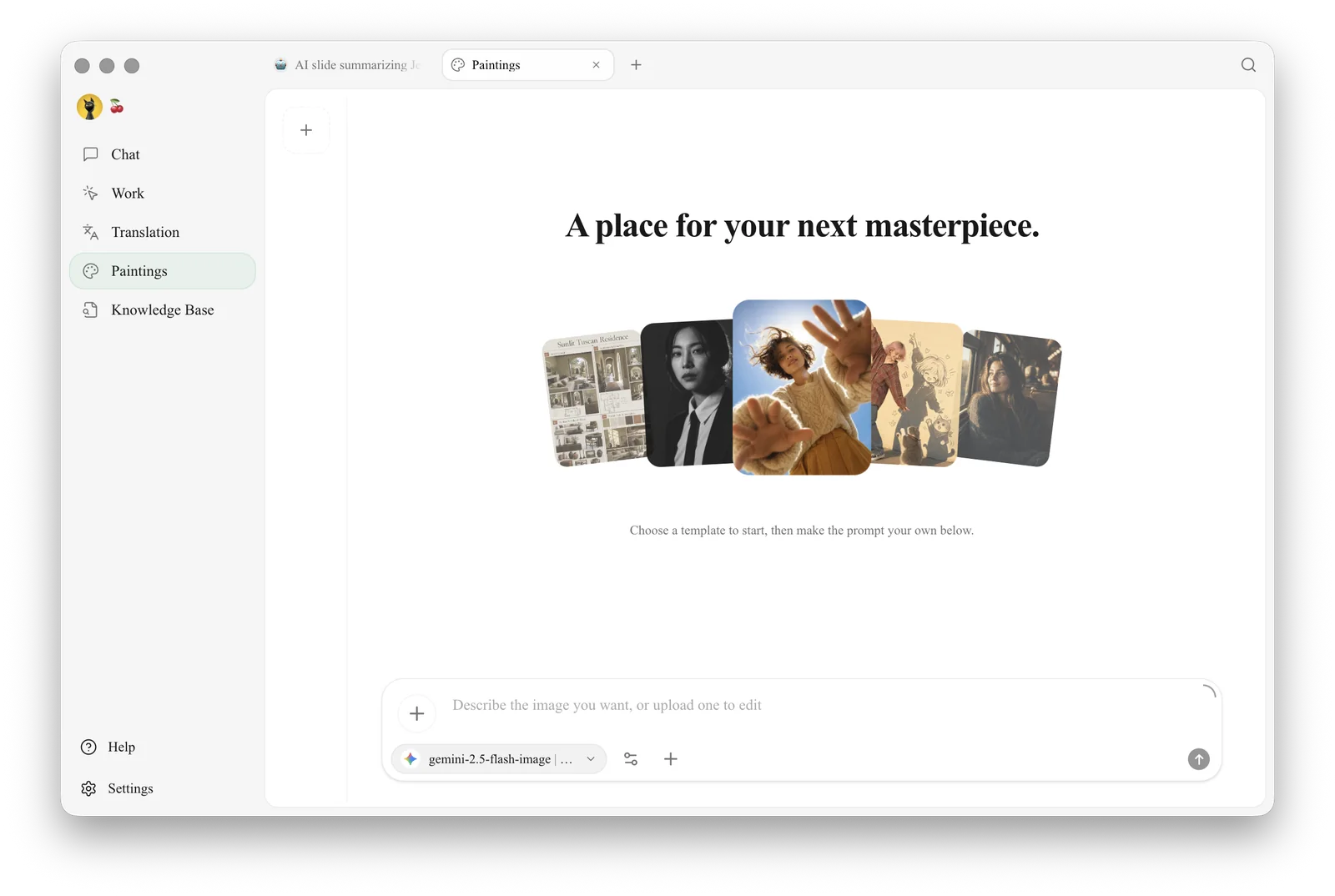
The Paintings page: the canvas list on the left, the canvas in the middle (templates to start from when empty), and the input area at the bottom with the model selector
The page consists of these parts:
- Canvas list (left): thumbnails of your canvases, arranged vertically. Click
+at the top to create a new canvas and switch to a new group - Canvas (middle): shows the image currently being generated
- Input area (bottom): the prompt box, with a provider and model selector on one side. Below it, a hint tells you whether the current provider has any image models available; if not, a green
Go to Settingsbutton takes you straight to that provider's configuration page - Generate / Edit: there is no separate toggle — the selected model decides. Choose a text-to-image model (such as
qwen-image) to generate; choose an image-editing model (such asqwen-image-edit) to edit, which means uploading an image first and then describing the changes
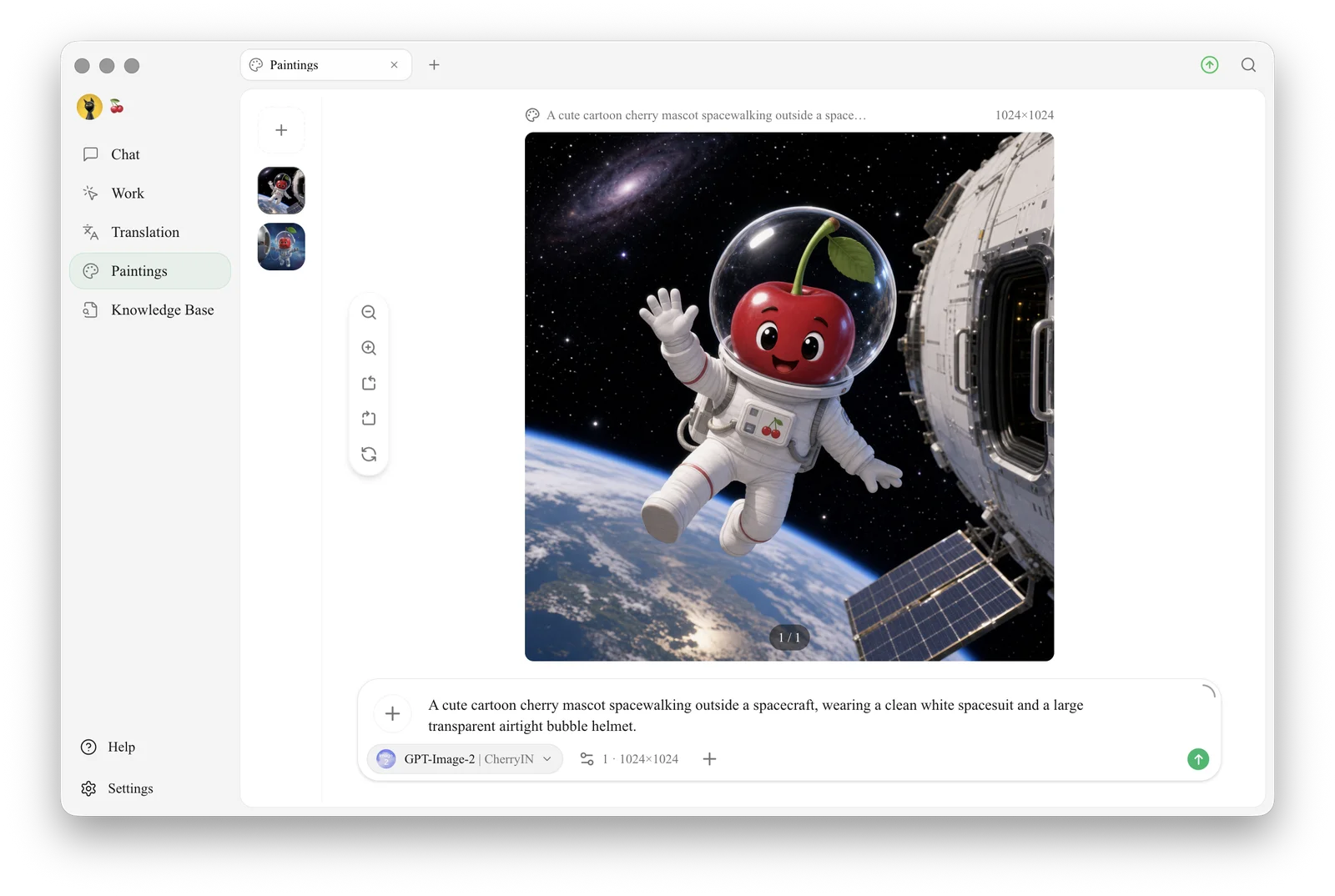
A generated image on the canvas; the input area shows the prompt, the model (here GPT-Image-2 | CherryIN) and the image count and size
After you select an image-editing model (such as qwen-image-edit), the input area switches to an "upload an image + describe the edit" mode.
Supported Providers
Painting in Cherry Studio relies on the image models offered by each provider. The model dropdown lists every option currently available to you, grouped by provider:
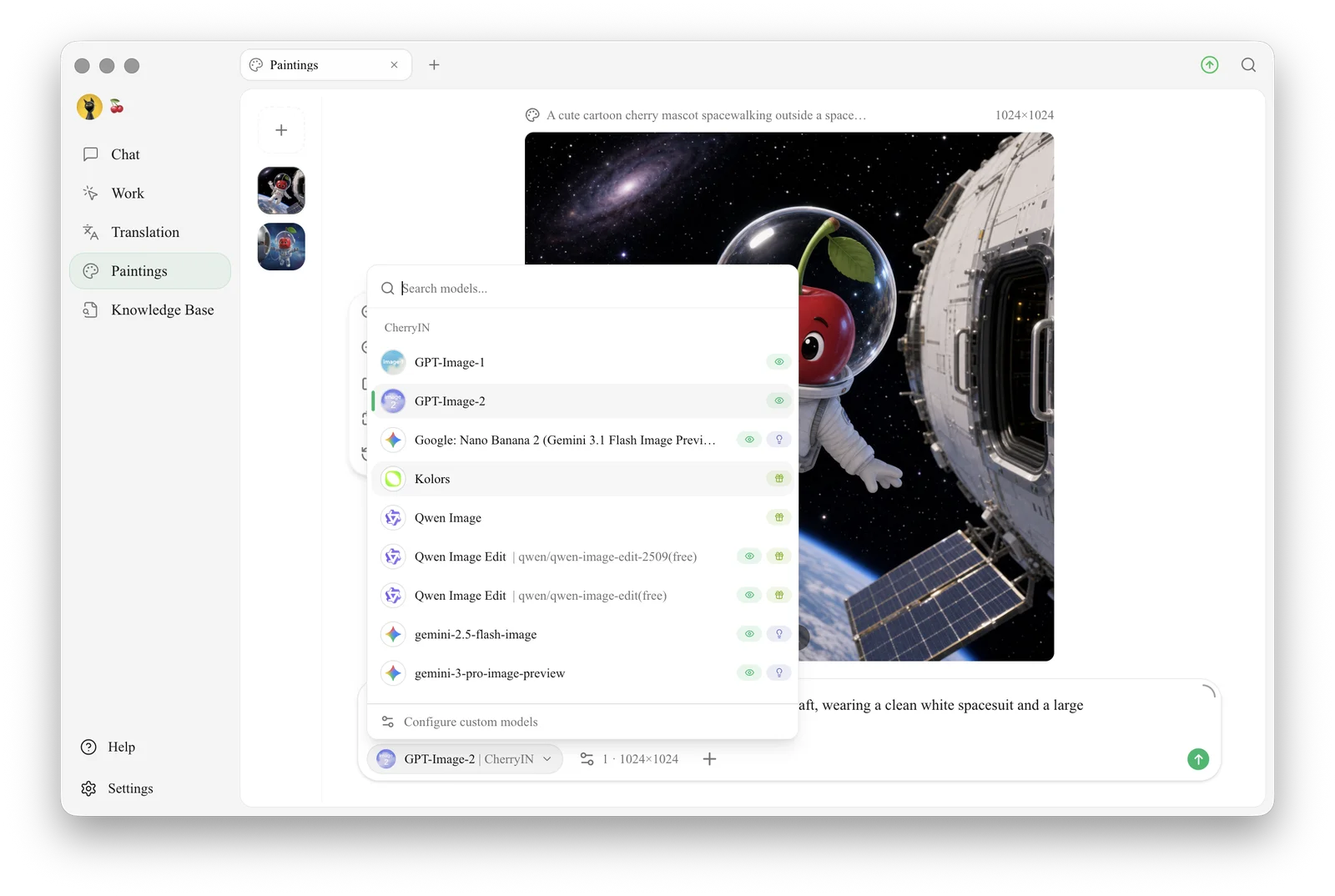
The model dropdown lists available image models by provider, with a search box at the top and "Configure custom models" at the bottom
They fall roughly into three groups:
| Type | Provider | Notes |
|---|---|---|
| Model platforms | SiliconFlow | Low prices, wide choice of open-source image models |
| Z.ai | ZhiPu's CogView image models | |
| Aggregation gateways | AiHubMix | Gateway aggregating multiple vendors |
| DMXAPI | Gateway aggregating multiple vendors | |
| TokenFlux | Gateway aggregating multiple vendors | |
| CherryIN | Cherry's official gateway with unified billing | |
| AiOnly | Third-party gateway | |
| Self-hosted / local | New API | Self-hosted gateway; appears in this list once added |
| OVMS | OpenVINO Model Server for local inference (shown only while OVMS is running) |
Start Painting
- Select a configured provider and model in the input area. If you see "No image generation models available", click
Go to Settingsand add a model with the endpoint type Image Generation (OpenAI) under that provider - Choose a text-to-image model (such as
qwen-image) and type a prompt in the input box (Chinese or English both work — the more specific, the better), for example:An orange cat wearing round glasses sitting on a pile of books, vintage oil painting style, warm dusk light - Adjust the parameters (size, steps, seed, etc.). If you're unsure, keep the defaults
- Click Generate and wait a few seconds to a few tens of seconds, depending on the model
- The generated image appears on the canvas, where you can download it, favorite it, or generate another one with one click
How to Fill In the Parameters
Some fields in the parameter panel have an ⓘ info icon on the right; hover over it to see an explanation (providers such as SiliconFlow, AiHubMix and PPIO mostly have these). However, not every provider includes tooltips — the Zhipu and NewAPI panels, for example, have none. If there's no explanation, just try the defaults below.
If you want to go deeper:
- Size: affects the amount of detail and the generation time. 1024x1024 is enough for everyday use
- Steps: how many times the model "refines" the image. 20–30 steps is usually enough; more gives diminishing returns
- CFG / Guidance: how closely the AI follows your prompt. 7–12 is a common range
- Seed: a fixed seed makes results reproducible; leave it empty to see random variations of the same prompt
Tips and Tricks
- English prompts usually work better (most models are trained mainly on English data)
- Be specific: include the style, composition, lighting and camera angle
- Want to "edit based on a reference image"? Check whether your provider supports img2img (image-to-image)
- Generate 4 images at once to save time: set the "batch count" to 4
Get Help and Submit Feedback
If you have any questions, bugs, or feature suggestions during configuration or use, please use the official channels listed in Feedback and Suggestions.