


Launchpad
The Launchpad provides centralized access to Cherry Studio's core features. Click the + button on the right side of the top tab bar to open a new Launchpad tab. Closing the last tab automatically returns you to the Launchpad.
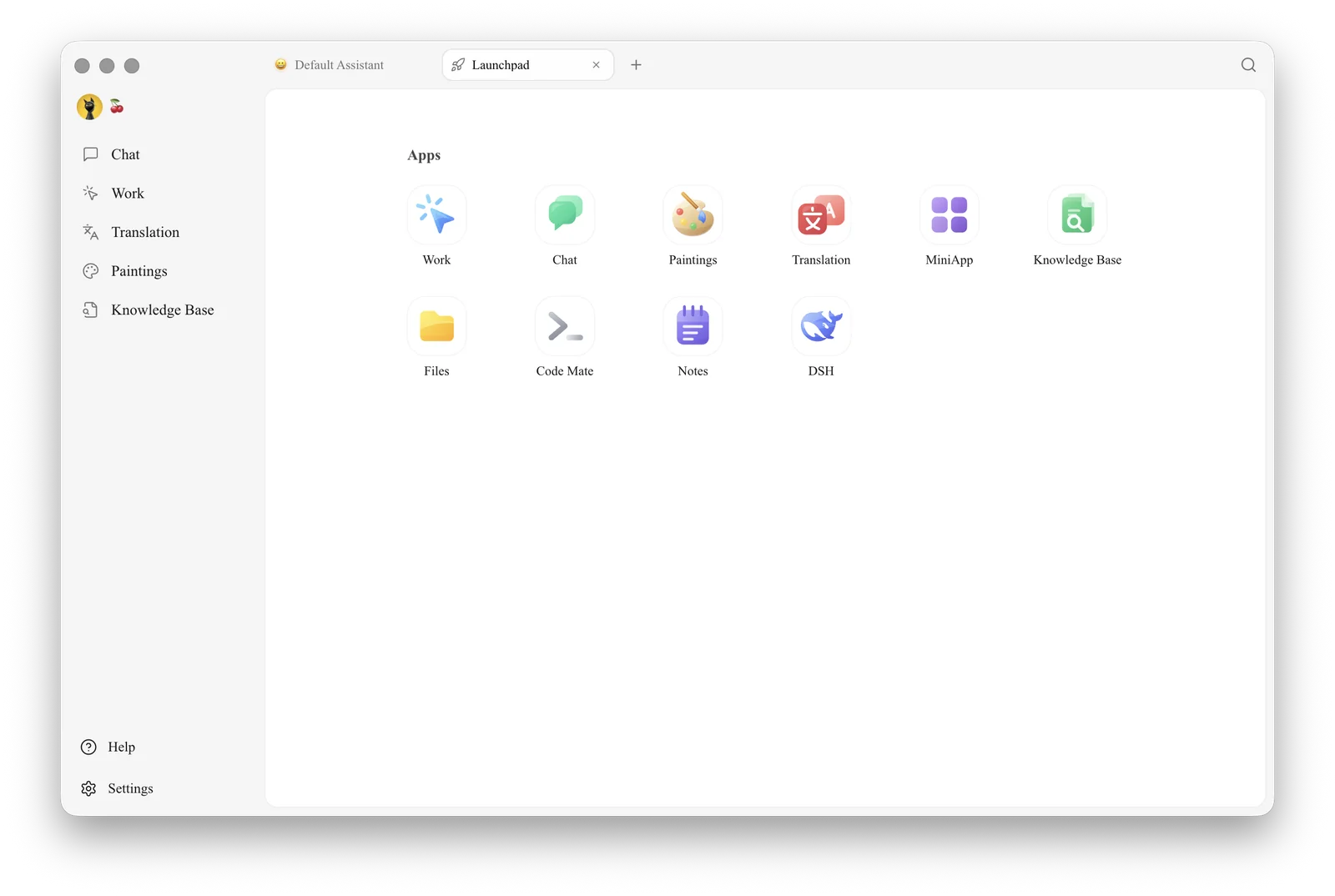
Default Apps
The Launchpad currently includes 9 built-in apps:
| App | Purpose |
|---|---|
| Chat | Chat with models, manage assistants and conversation lists |
| Work | Enable agents to call tools and complete multi-step tasks |
| Paintings | Generate and manage images using image models |
| Translation | Translate text and view source and target side-by-side |
| MiniApp | Use web applications within Cherry Studio |
| Knowledge Base | Import documents for retrieval and Q&A |
| Files | View and manage files used within the app |
| Code Mate | Install, configure, and launch AI coding CLI tools |
| Notes | Create and organize Markdown notes |
Reorder Apps
Drag and drop an app icon to a new position to change the order of built-in apps. Cherry Studio automatically saves the new order.
The Launchpad and the sidebar maintain separate app orders. Reordering apps in the Launchpad does not affect the sidebar layout.
Pin to Sidebar
Frequently used apps can be pinned to the sidebar:
- Right-click an app in the Launchpad.
- Select Add to Sidebar.
- To unpin, right-click again and select Remove from Sidebar.
Tip: Chat is a required sidebar entry and cannot be removed. Other apps remain accessible from the Launchpad even if not pinned to the sidebar.
Manage Mini Apps
After adding a web app to the Launchpad via the Mini Apps page, it appears in the "Mini Apps" section below the built-in apps.
- Drag Mini App icons to adjust their display order.
- Right-click a Mini App to add it to the sidebar or remove it from the Launchpad.
- Removing from the Launchpad only removes the shortcut; it does not delete the Mini App itself.
Get Help and Submit Feedback
If you encounter issues or have feature suggestions, contact us through the official channels provided on the Feedback and Suggestions page.