


Translation
Cherry Studio's translation feature provides you with fast and accurate text translation services, supporting mutual translation between multiple languages.
Interface Overview
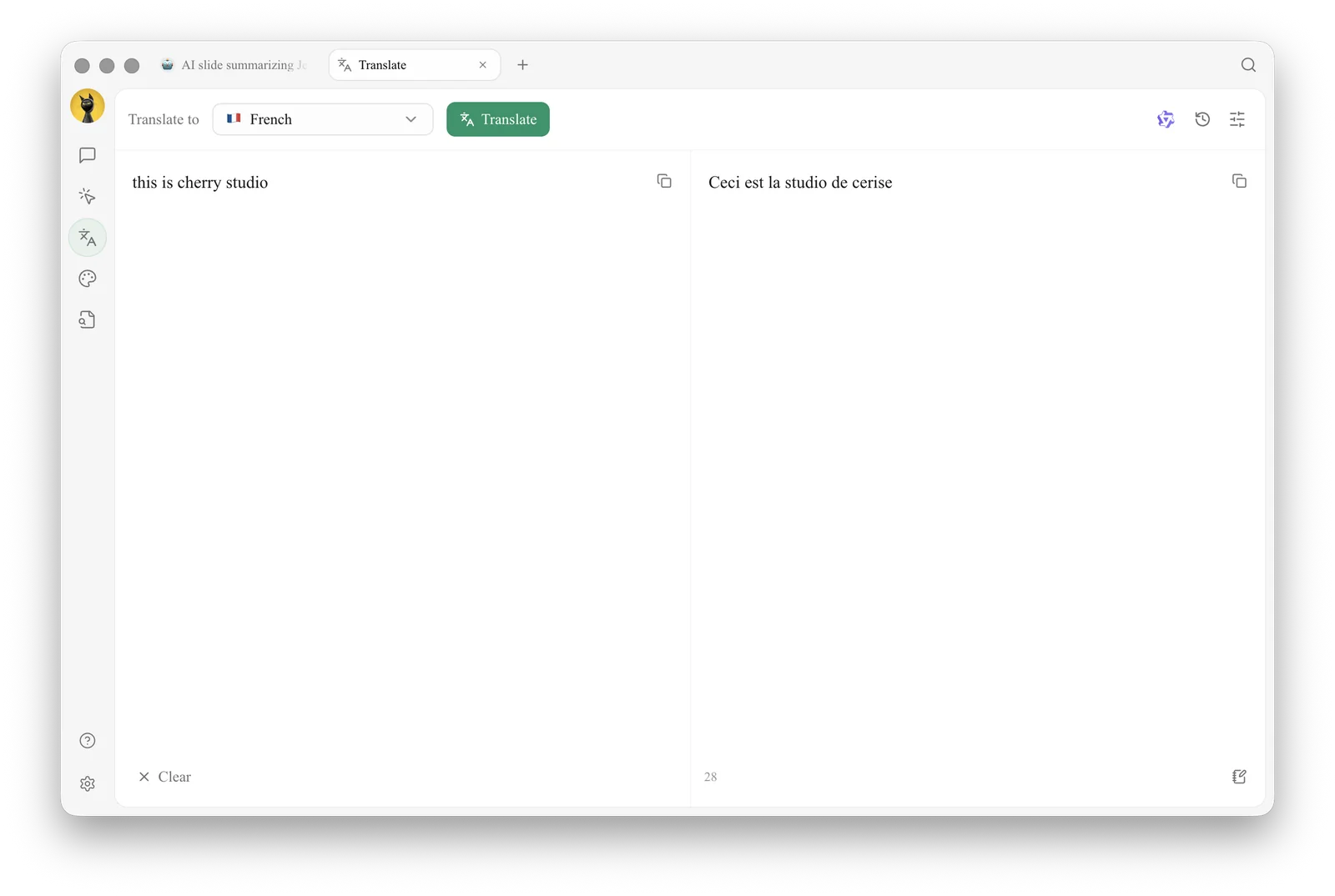
The Translation page: choose the target language at the top, type on the left, and read the result on the right
The translation page consists of the following parts:
- Translate to (top left):
- Choose the language you want to translate into from the dropdown.
- There is no source-language selector — the source language is detected automatically.
- Translate button:
- Next to the language dropdown. Click it to start translating.
- Top-right icons:
- The model icon shows the translation model in use.
- The clock icon opens your translation history.
- The settings icon opens the translation settings.
- Source text (left):
- Type or paste the text you want to translate.
- Click Clear at the bottom left to empty the box.
- Translation result (right):
- Shows the translated text, with the character count at the bottom.
- Click the copy button in the top right of either box to copy its text.
Usage Steps
- Choose the target language:
- Select the language to translate into from the Translate to dropdown.
- Enter or paste text:
- Type or paste the text into the left box.
- Start translating:
- Click the Translate button.
- View and copy the result:
- The translation appears in the right box.
- Click its copy button to copy the translation to the clipboard.
Frequently Asked Questions (FAQ)
- Q: What if the translation is inaccurate?
- A: While AI translation is powerful, it is not perfect. For texts in specialized fields or complex contexts, manual proofreading is recommended. You can also try switching to different models.
- Q: Which languages are supported?
- A: Cherry Studio's translation feature supports various mainstream languages. Please refer to Cherry Studio's official website or in-app instructions for the specific list of supported languages.
- Q: Can I translate an entire file?
- A: The current interface is mainly for text translation. For file translation, you might need to go to Cherry Studio's chat page and add the file for translation.
- Q: What if the translation speed is slow?
- A: Translation speed may be affected by factors such as network connection, text length, and server load. Please ensure your network connection is stable and wait patiently.