


Connect Baizhi Cloud Browser
Use Baizhi Cloud Browser, also known as CapyBrowser, when your agent needs to manage cloud browser sessions, saved browser state, human handoff or downloads. Navigation, clicks and reading still require a compatible CDP client available to your agent; this MCP connection does not install page-control tools.
Prepare your Baizhi Cloud account and check the current key options in the browser setup guide. Baizhi Cloud Browser and Baizhi Cloud Agent Toolkit are separate Baizhi Cloud services. Configure credentials for this connection separately; do not assume a Toolkit application key works for the browser service.
Browser startup and runtime are billed. Closing Cherry Studio, unbinding the agent, disabling or deleting an MCP connection does not end existing cloud runs or stop their charges.
Configure the connection
1. Add a remote server
On first launch, choose Set up later in the upper-right corner of the welcome screen. Configuring this MCP connection does not require a CherryIN login or a model provider. Open Settings from the main window. If Settings initially shows a model provider's login prompt, select MCP in the left sidebar.
Open Settings → MCP → MCP Servers → Add → Quick Create. Enter Baizhi Cloud Browser as the name, select Streamable HTTP (streamableHttp) and enter this URL:
https://capybrowser.app.baizhi.cloud/mcp2. Set the request header
Under Advanced Settings → Headers, enter one line. An existing entry can be edited on its configuration page:
Authorization=Bearer <your-browser-key>Do not enter only Authorization=Bearer: add one space after Bearer, followed by the complete key. Replace all of <your-browser-key>, including the angle brackets, with your own key, keeping one Bearer prefix. For example, if the key were the fictional value example-browser-key, the complete line would be:
Authorization=Bearer example-browser-keyThis fictional value illustrates the format and will not authenticate with the real service. Use an equals sign between the name and value. This is a plain text area; do not share the key, screenshots containing it or exported configuration. A newly added server starts disabled. Save and inspect it before explicitly switching it on.
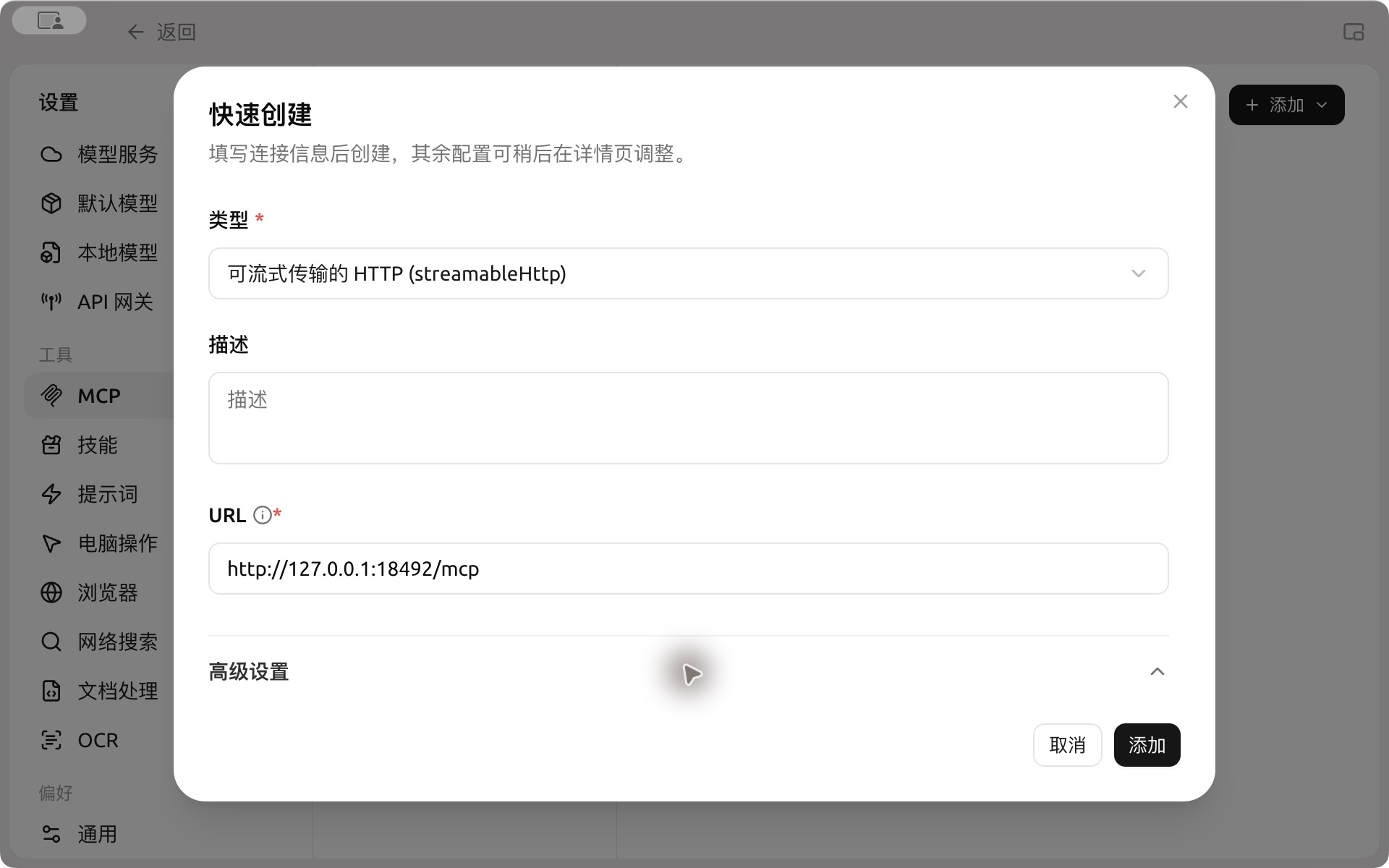
The screenshots show the actual client in Simplified Chinese with a local synthetic service. Credentials have not been entered in this configuration image. Use the service URL above and your own key for a real connection.
3. Check tools and bind the agent
Wait for Connected, then open Tools in the server details. Inspect the tool list and Auto Approve settings. Keep human confirmation for tools that create runs, write data or incur charges. If authentication fails, check the address, key applicability and header format before retrying potentially billable operations.
Open Work → agent menu → Edit → MCP and enable this server only for the agent that needs it. Check identity and pricing first. A visible tool list does not prove that all tools are permitted or that a complete browser task can run.
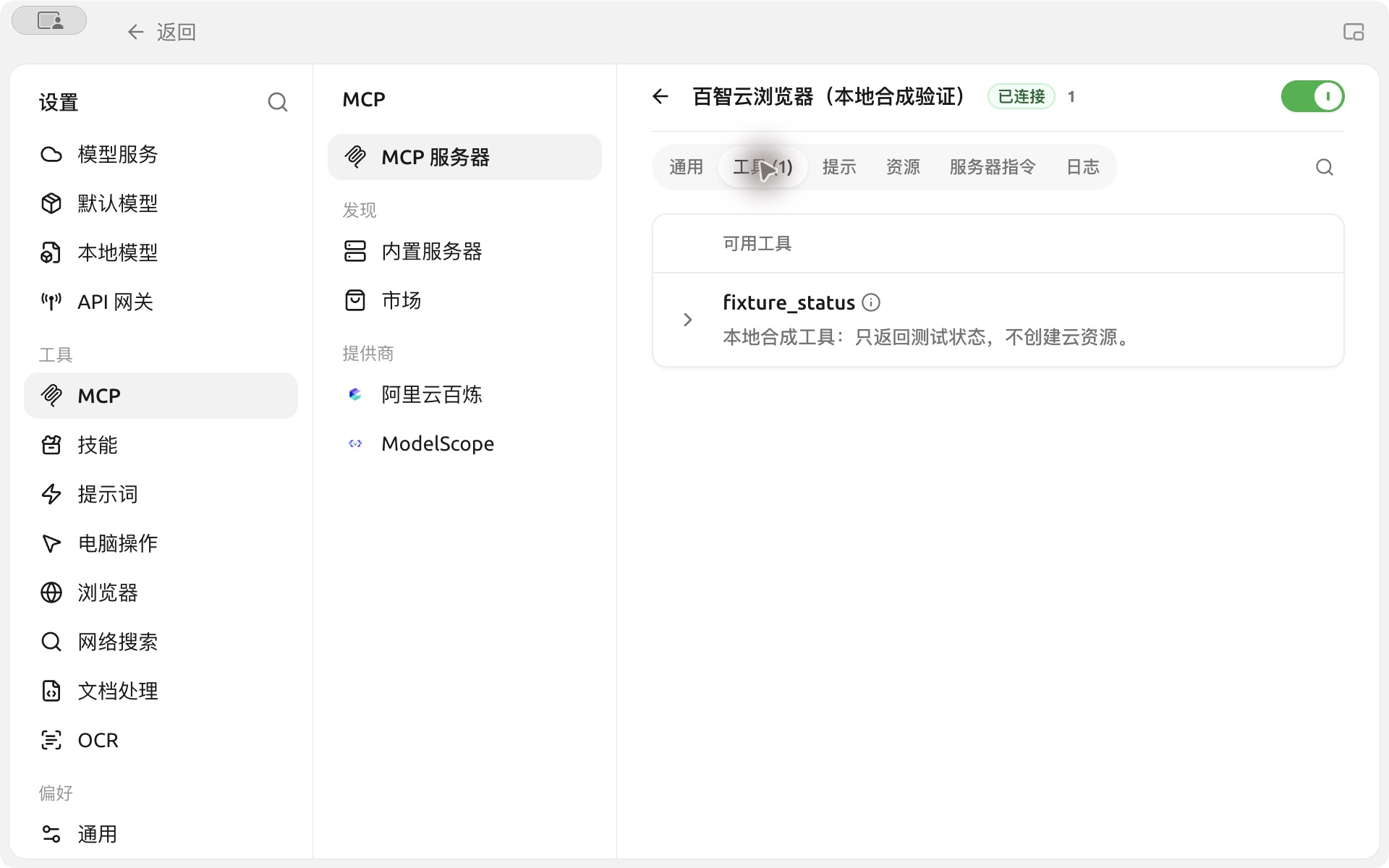
This image demonstrates local synthetic discovery only; fixture_status is not the production service's tool catalog.
4. End runs you create
Pause agent actions during human handoff, keep the same run, and resume after control returns. When finished, explicitly end the run through the browser service's tools or console. Check resource release and final billing separately.
Replace a key or remove the connection
Switch the server off before replacing its header. Save, enable it and check the tools again. Disable the switch to stop using the local connection; delete only that entry when it is no longer needed. Deleting local configuration does not revoke the cloud key or end existing runs.
Tool inputs go to Baizhi Cloud and page activity reaches the visited sites. Read the service terms and privacy information before use. For account and run questions, see the console and setup guide.
What do disabling and removal look like?
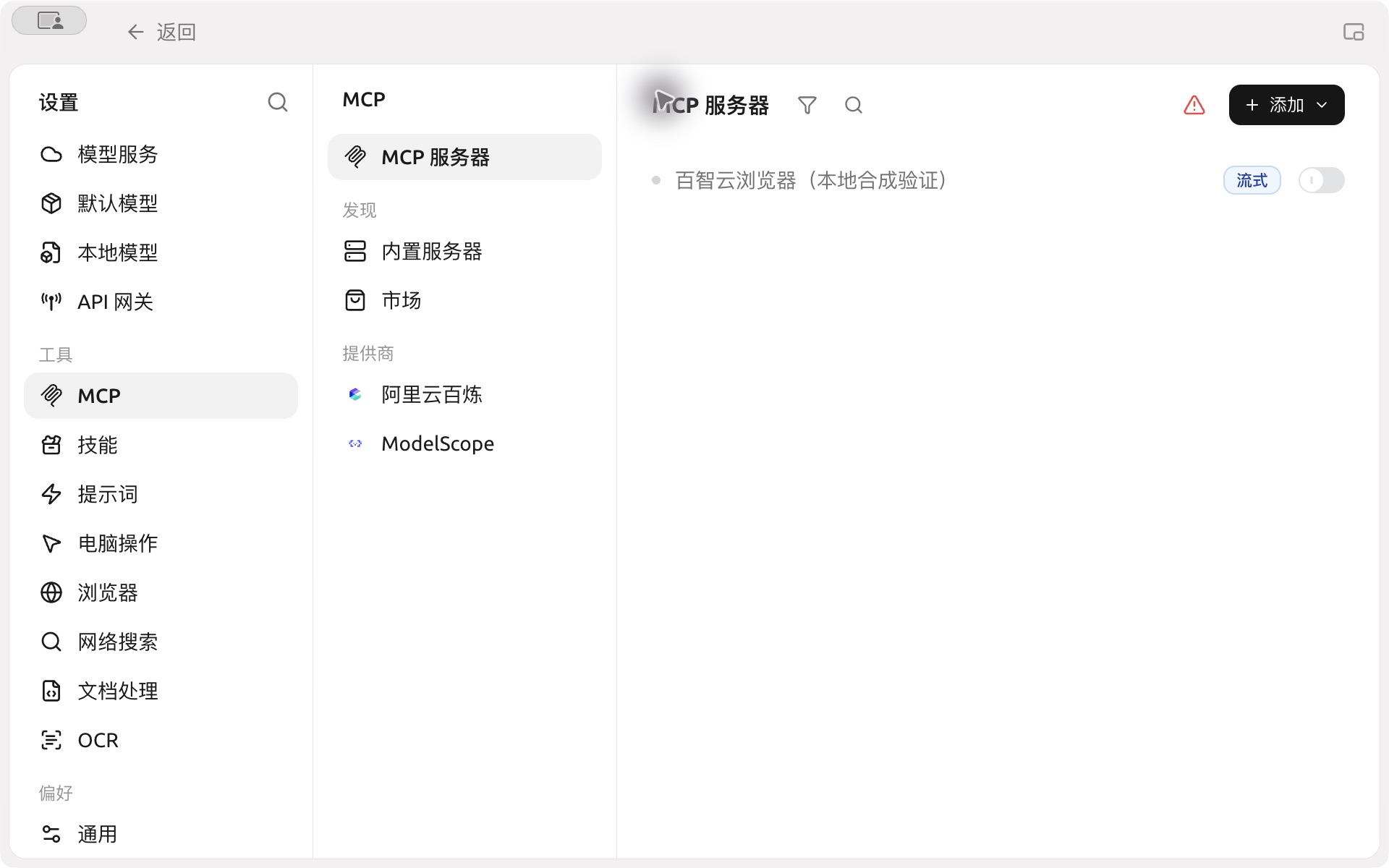
Disabling affects the local connection; cloud runs still need to be ended explicitly.
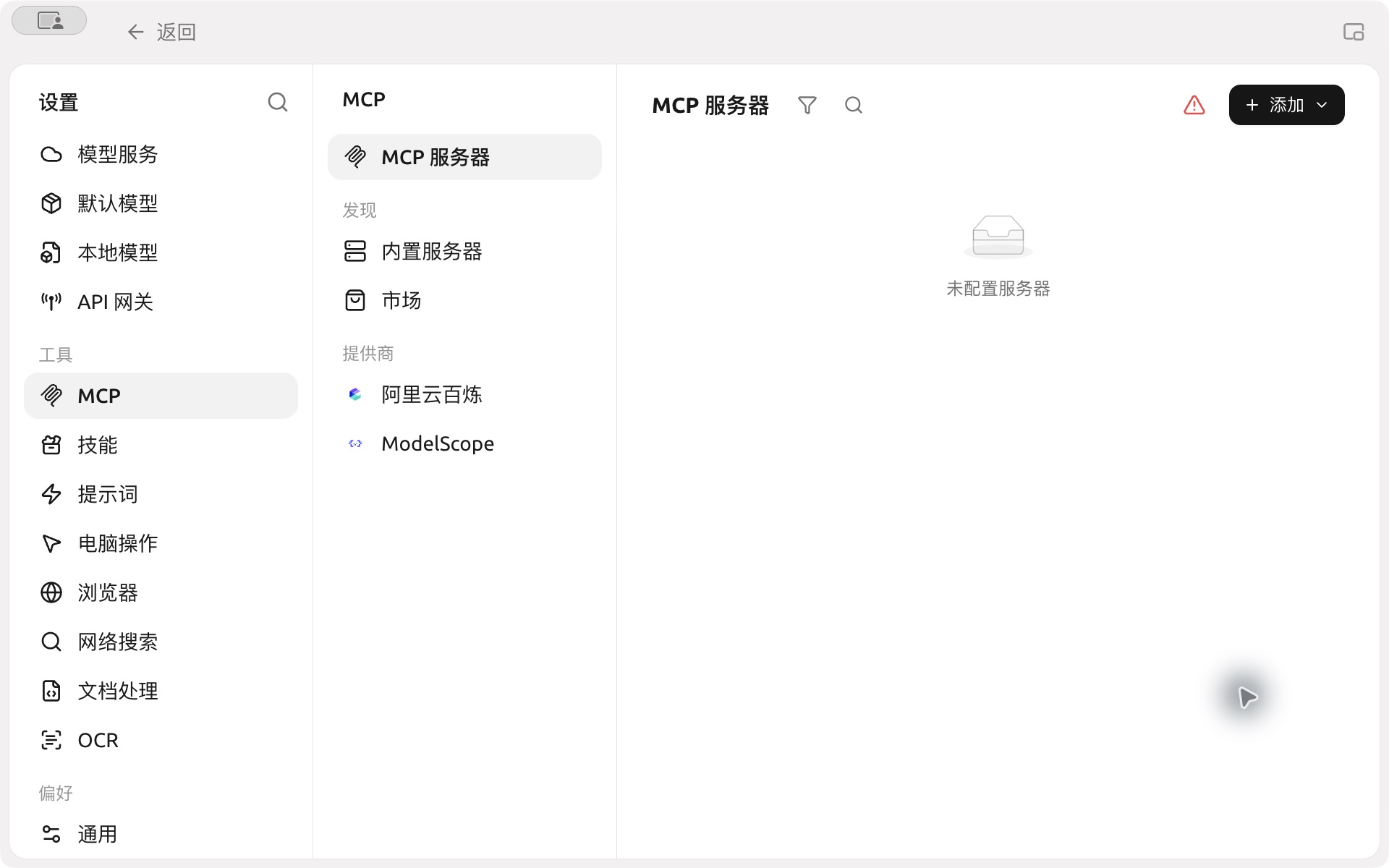
Select only the entry you intend to delete and confirm. These screenshots use an isolated test configuration; preserve unrelated connections in your own setup.
This example is contributed and maintained by ctcbyzx, who maintains the Baizhi Cloud Browser integration materials.