


OCR
OCR (Optical Character Recognition) converts text in images into copyable text that AI can read. The following scenarios rely on it:
- Dragging a screenshot or scanned document into the chat box so the AI can read the text
- Adding image-based invoices or documents to the Knowledge Base for future search
- An Agent opening a local image for analysis
OCR has a dedicated settings page. Configure the recognition engine once in Settings → OCR, and all image text recognition features will use the same configuration.
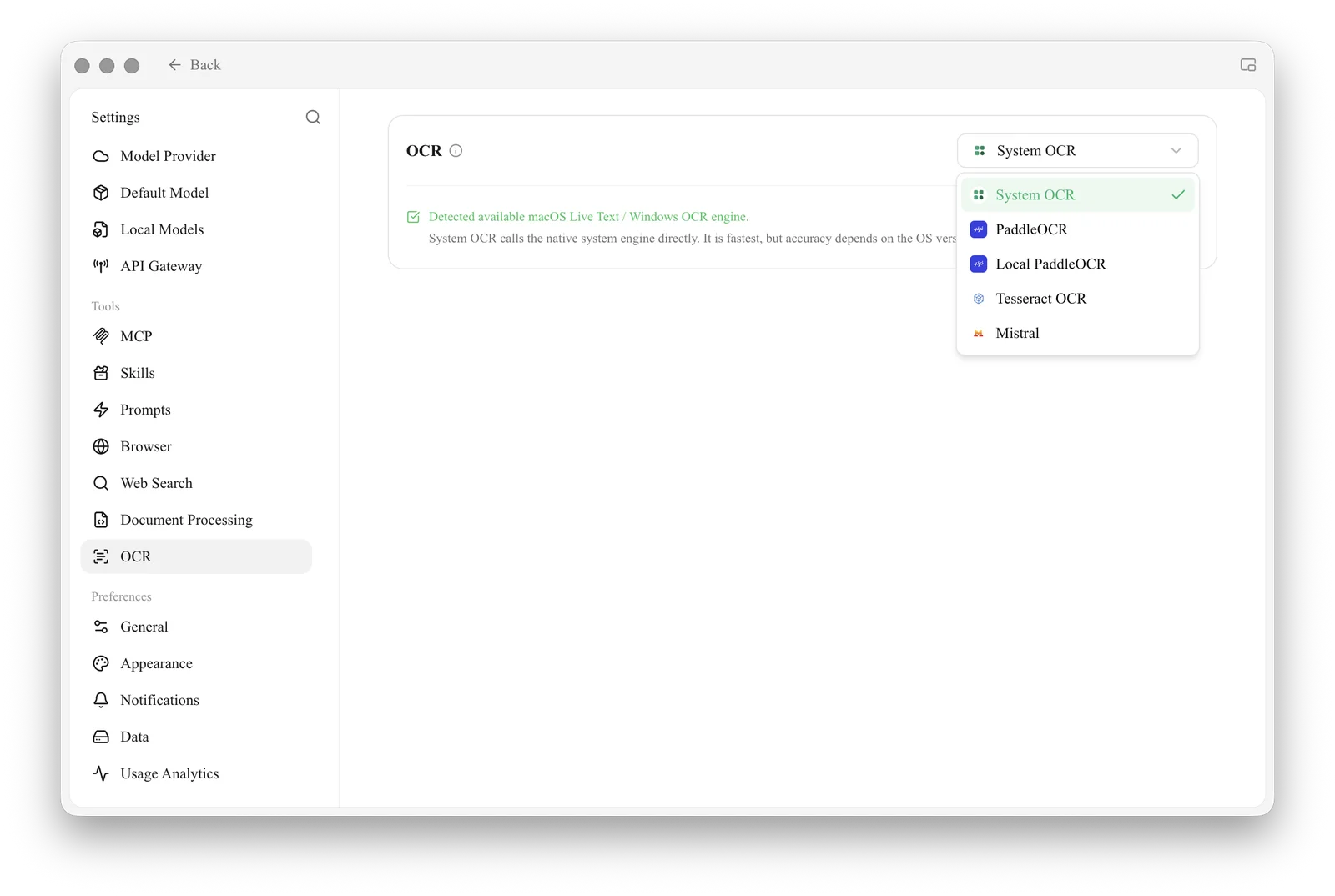
OCR Settings: ① Select the recognition engine from the dropdown in the top-right corner (Mistral shown in the example), then enter the API key and API address for the selected engine
Selecting the Recognition Engine
Use the dropdown in the top-right corner of the panel to switch OCR engines. The selected engine becomes the default. Built-in engines:
| Engine | Integration / Runtime | Best For |
|---|---|---|
| System OCR | Offline, no configuration required | Uses system-native recognition (macOS Live Text / Windows OCR); ready to use and fastest |
| PaddleOCR | Enter API key (PaddlePaddle Galaxy Community); if self-hosted, point the API address to your service. Optional parsing model | Avoids local resource usage while leveraging Paddle's recognition quality |
| Local PaddleOCR | Offline; requires downloading the local OCR model (approx. 140MB) in Settings → Local Models first | Excellent Chinese recognition, runs entirely locally, privacy-first |
| Tesseract OCR | Offline, built-in | Classic open-source OCR, supports multiple languages, good fallback option |
| Mistral | Mistral API key | Leverages multimodal LLMs for smarter recognition of complex layouts / handwriting |
| Intel OV OCR | Local runtime (Intel OpenVINO, NPU acceleration) | Only appears on Windows + Intel Core Ultra (with NPU) when OV models are deployed; hidden on other devices |
When System OCR is selected, the panel displays macOS Live Text / Windows OCR engine detected (if the system does not support it, this option will not appear in the dropdown).
Difference from Document Processing
Many people confuse OCR with Document Processing. Here is the distinction:
- OCR: Handles text recognition in images / scans (Image → Text).
- Document Processing: Handles structured parsing of PDFs / complex layout documents (PDFs with tables/multi-columns → Clean text).
They are independent and configured separately. Text paragraphs in plain text PDFs, .md/.txt/.docx are read directly without passing through either process.
Getting Help and Providing Feedback
If you have any questions, bugs, or feature improvement suggestions during configuration or usage, please refer to the official channels provided in Feedback and Suggestions.