


SearXNG Local Deployment and Configuration
SearXNG is an open-source metasearch engine: it sends your query to engines such as Google, Bing and DuckDuckGo and combines the results. Cherry Studio can use a SearXNG instance you run yourself as its web search provider.
- Open source and free, no API key required
- Good privacy, since you control the instance
- Highly customizable
Unlike hosted providers such as Tavily or Exa, SearXNG has to be deployed first, either on your own computer or on a server. If you just want web search to work, a hosted provider is quicker to set up; see Web Search.
1. Deploy SearXNG
On your computer
With Docker installed, run:
mkdir -p searxng
docker run -d --name searxng -p 8080:8080 \
  -v "$(pwd)/searxng:/etc/searxng" \
  searxng/searxng:latest
Open http://localhost:8080 in your browser. If the SearXNG search page appears, the deployment works.
On a server
To share one instance or avoid installing Docker locally, deploy SearXNG on a server with the official searxng-docker setup, following its README. Start it with docker compose up -d and check the logs with docker compose logs -f searxng.
SearXNG has no login of its own. If the instance is reachable from the internet, put it behind a reverse proxy with HTTP Basic Authentication, which Cherry Studio supports. With Nginx, add these two lines to the location block that proxies SearXNG:
auth_basic "Please enter your username and password";
auth_basic_user_file /etc/nginx/conf.d/search.htpasswd;
Then create the password file (replace the username and password) and reload Nginx:
echo "example_name:$(openssl passwd -5 'example_password')" > /etc/nginx/conf.d/search.htpasswdOpen the site in a browser; it should ask for the username and password before showing the SearXNG page.
2. Enable JSON output
Cherry Studio reads results in JSON, which SearXNG does not return by default. Open settings.yml (for the local setup above it is in the searxng folder; for searxng-docker it is searxng/settings.yml) and make sure json is listed under search.formats:
search:
  formats:
    - html
    - json
For a private instance, also turn off the rate limiter so Cherry Studio's requests are not blocked:
server:
  limiter: false
Restart SearXNG after saving (docker restart searxng, or docker compose restart for searxng-docker).
3. Configure Cherry Studio
Open Settings → Web Search, choose Searxng from the Search service provider dropdown, and enter your SearXNG address in API Host, for example http://localhost:8080. If Cherry Studio itself runs in Docker, use http://host.docker.internal:8080.
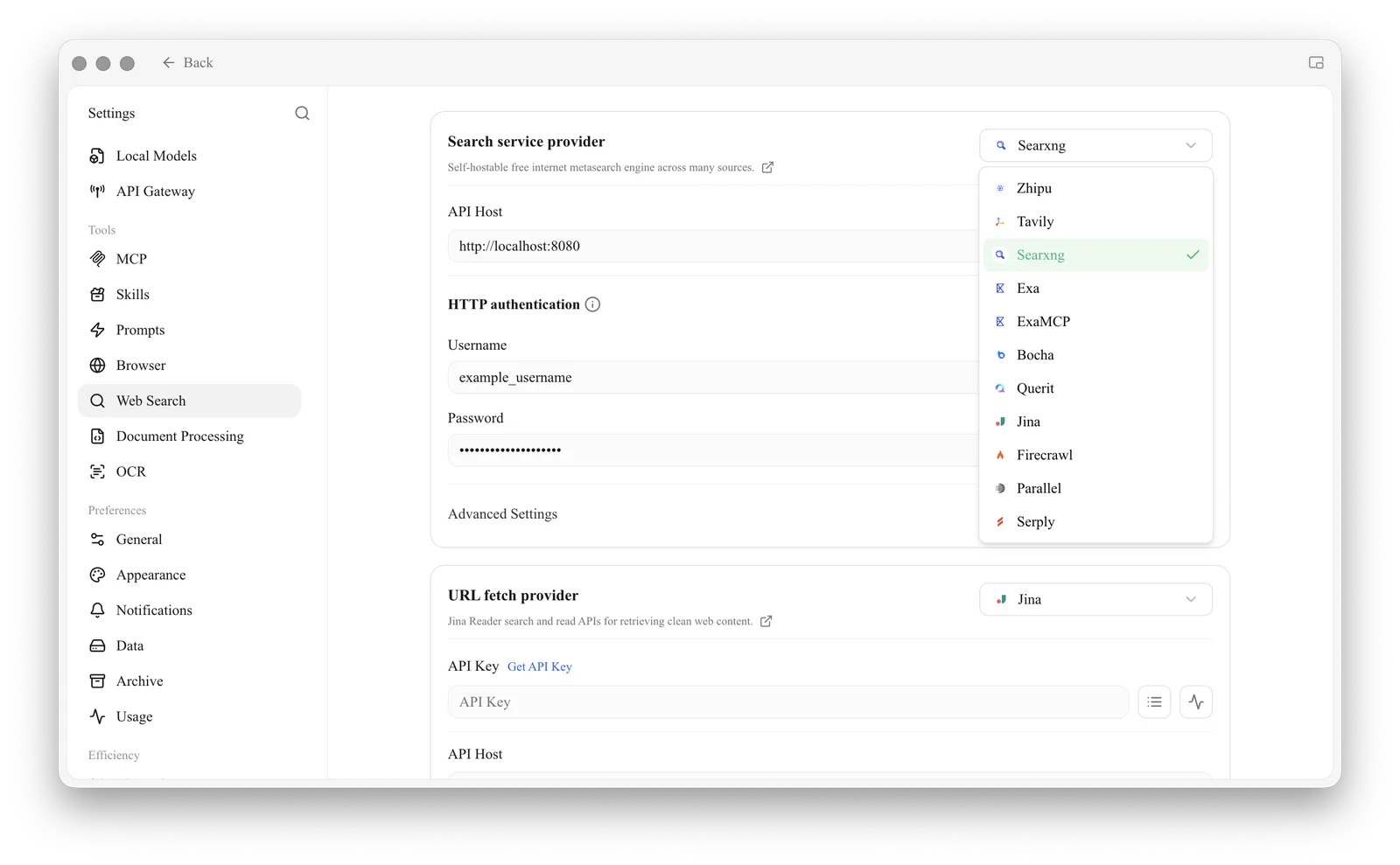
Choose Searxng as the search service provider
If you set up HTTP Basic Authentication, enter the username and password under HTTP authentication:
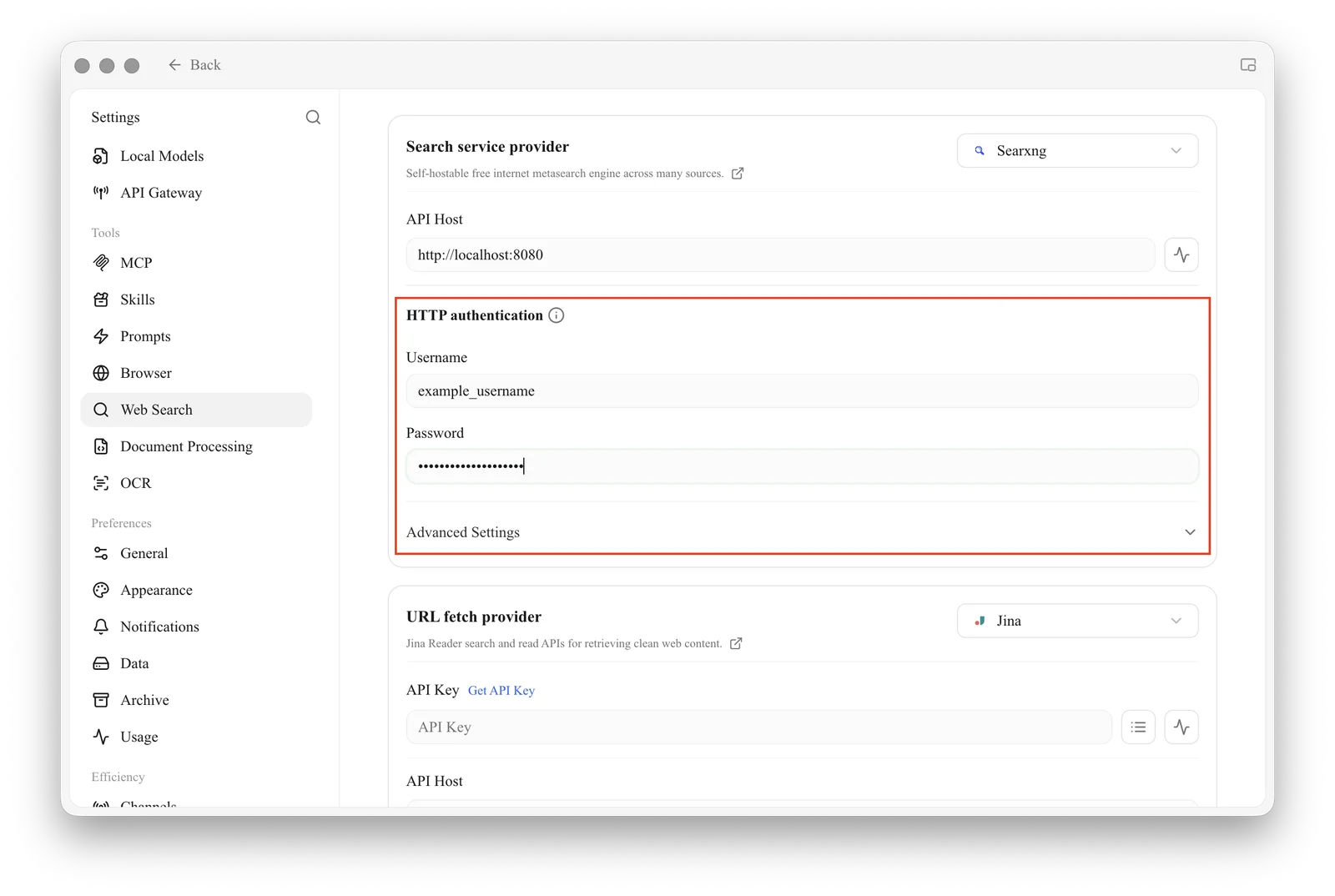
Enter the HTTP Basic Authentication username and password
Click the check button next to API Host to verify the connection. If it fails, a "Verification failed" message appears at the top of the window:
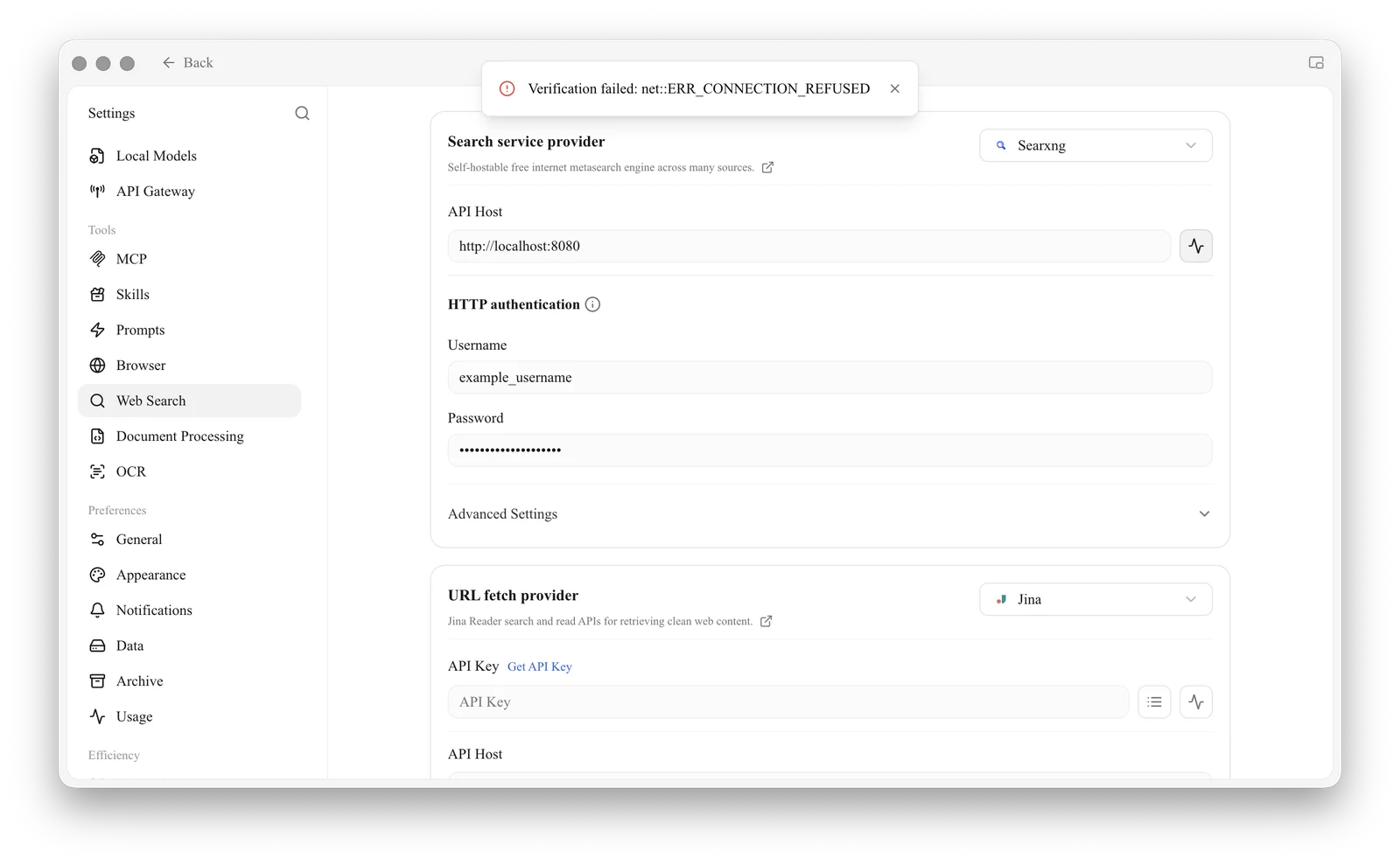
A connection error such as ERR_CONNECTION_REFUSED means the address is unreachable
Common Reasons for Verification Failure
| Symptom | Fix |
|---|---|
| Connection refused or timed out | Check that SearXNG is running and that the address and port in API Host are correct |
| 401 error | The reverse proxy requires login: fill in HTTP authentication |
| 403 error or no results | json is missing from search.formats in settings.yml; add it and restart |
| Works at first, then fails with frequent searches | The rate limiter is blocking requests: set limiter: false and restart |
| No results for some queries | The engines SearXNG uses may be blocked from your network. Cherry Studio uses engines in the web and general categories, so adjust or enable engines in settings.yml (see the SearXNG settings documentation) |