


Windows Installation
1. Download the Installer
Open the official download page and select Windows.
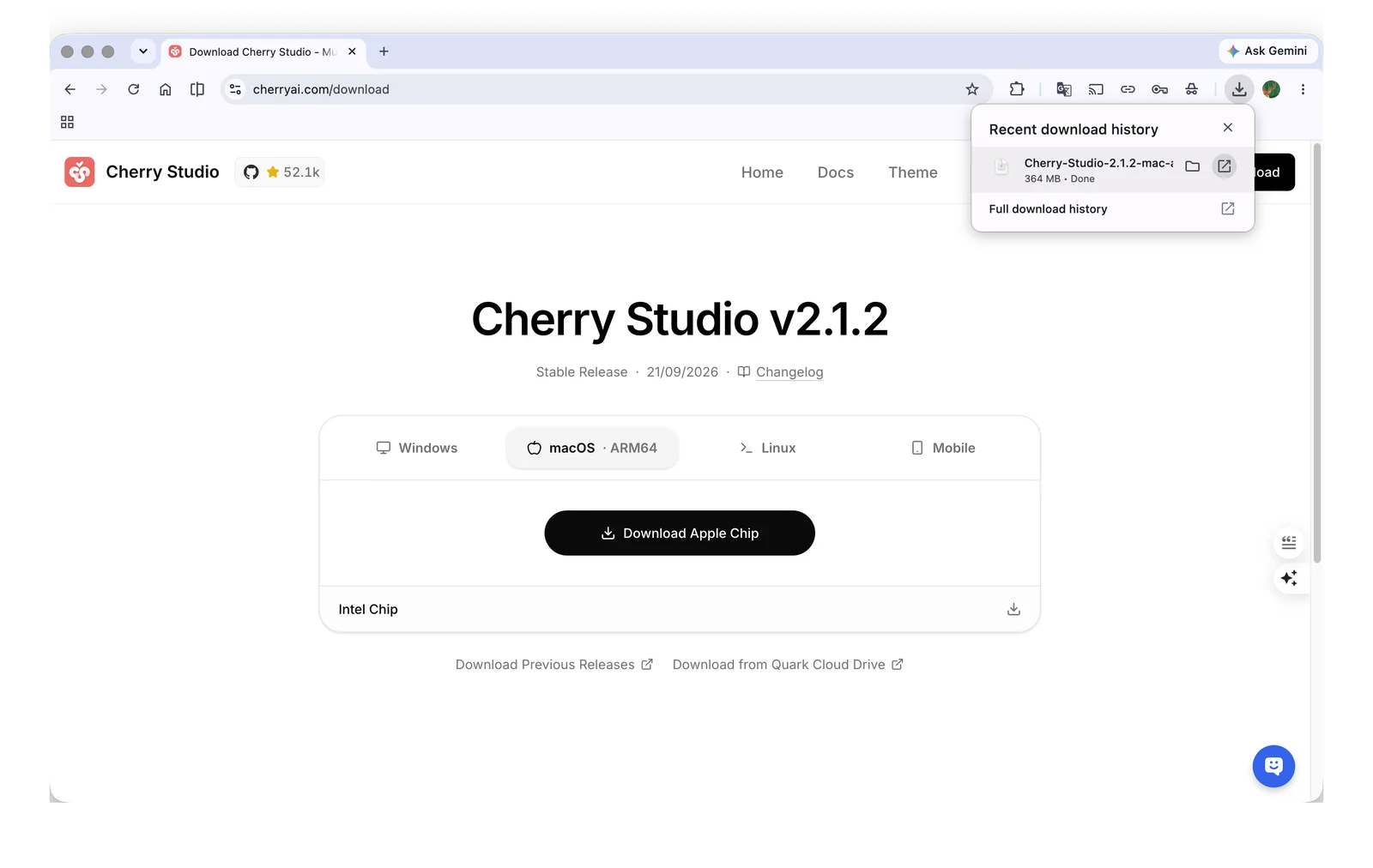
The official download page: select the Windows tab
Most Intel / AMD PCs should choose the standard Windows build; Windows on ARM devices should choose the build marked ARM. If you want a portable version that doesn't install into the system, choose the portable build for the same architecture.
Not sure about your device's architecture? Open Settings → System → About in Windows and check System type.
2. Install and Launch
- Double-click the downloaded installer;
- When Windows shows a User Account Control prompt, confirm the file comes from an official source and choose to continue;
- Follow the setup wizard to finish installing;
- Launch Cherry Studio from the Start menu.
FAQ
Missing runtime library
The installer checks for the Microsoft Visual C++ runtime matching your device's architecture and downloads and installs it automatically if it's missing.
If the automatic download or installation fails, open the official Microsoft download link from the error message, install the runtime, then run the Cherry Studio installer again:
Cherry Studio won't start
First make sure the installer's architecture matches your device, and check whether security software is blocking it. If it still won't start, include your Windows version, device architecture, installer file name and the full error message in your feedback.
Next Step
Once you see the Cherry Studio main window, continue with Quick Start.